Noindex vs robots.txt vs Canonical: How to Control What Google Indexes
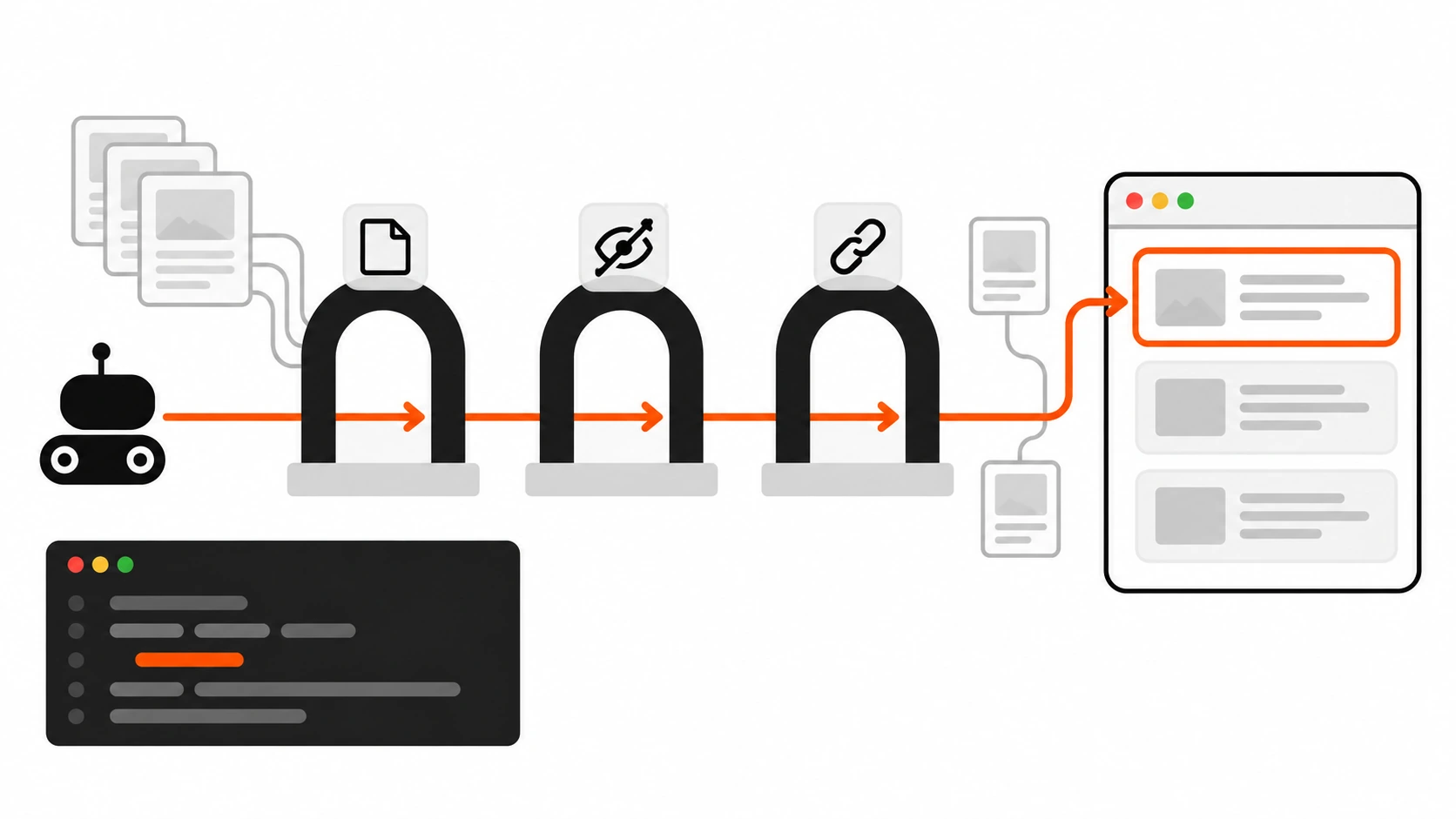
A surprising number of my “why is this page on Google?” calls start with the same sentence: “But we blocked it in robots.txt.” This story is a composite of several site handovers I have worked on, because the pattern repeats almost word for word.
A client had a staging copy of their WordPress site on a subdomain. Someone, long before I arrived, added Disallow: / to the staging robots.txt to keep it out of search. A few months later the staging home page was showing up in Google for the brand name, right under the real site, with no description and a “No information is available for this page” style result. Search Console for the staging host listed a pile of URLs under “Indexed, though blocked by robots.txt”. On the production site, the opposite problem: a set of old thank-you pages and tag archives that should have been hidden were still indexed, because the noindex tag was there but robots.txt also blocked them, so Google never saw it.
Nobody had done anything stupid. They had used the right words for the wrong tool. robots.txt, the noindex rule, and the canonical tag all sound like “SEO settings”, but they answer three completely different questions. Once you keep those questions separate, most indexing problems become boring to fix.
This guide is the mental model and the exact setup I use on client sites: what each tool really does, the classic Disallow plus noindex mistake, how canonical tags actually work, a decision list for common pages, what WordPress core and Yoast SEO already do for you, how to set it all up in Next.js, and the audit I run before every launch.
The short version: crawl, index, consolidate
If you remember one thing from this article, make it this:
- robots.txt controls crawling. It tells well-behaved crawlers which URLs they may request.
- noindex controls indexing. It tells search engines that a page they fetched must not appear in results.
- rel=”canonical” controls consolidation. It tells search engines which URL should represent a group of duplicate or near-duplicate pages.
These are three gates in a row. A crawler first checks robots.txt to decide whether it may fetch a URL. If it fetches the page, it reads the robots rules in the HTML or headers to decide whether the page may be indexed. If the page is indexable, the canonical signal helps decide which of several similar URLs gets shown.
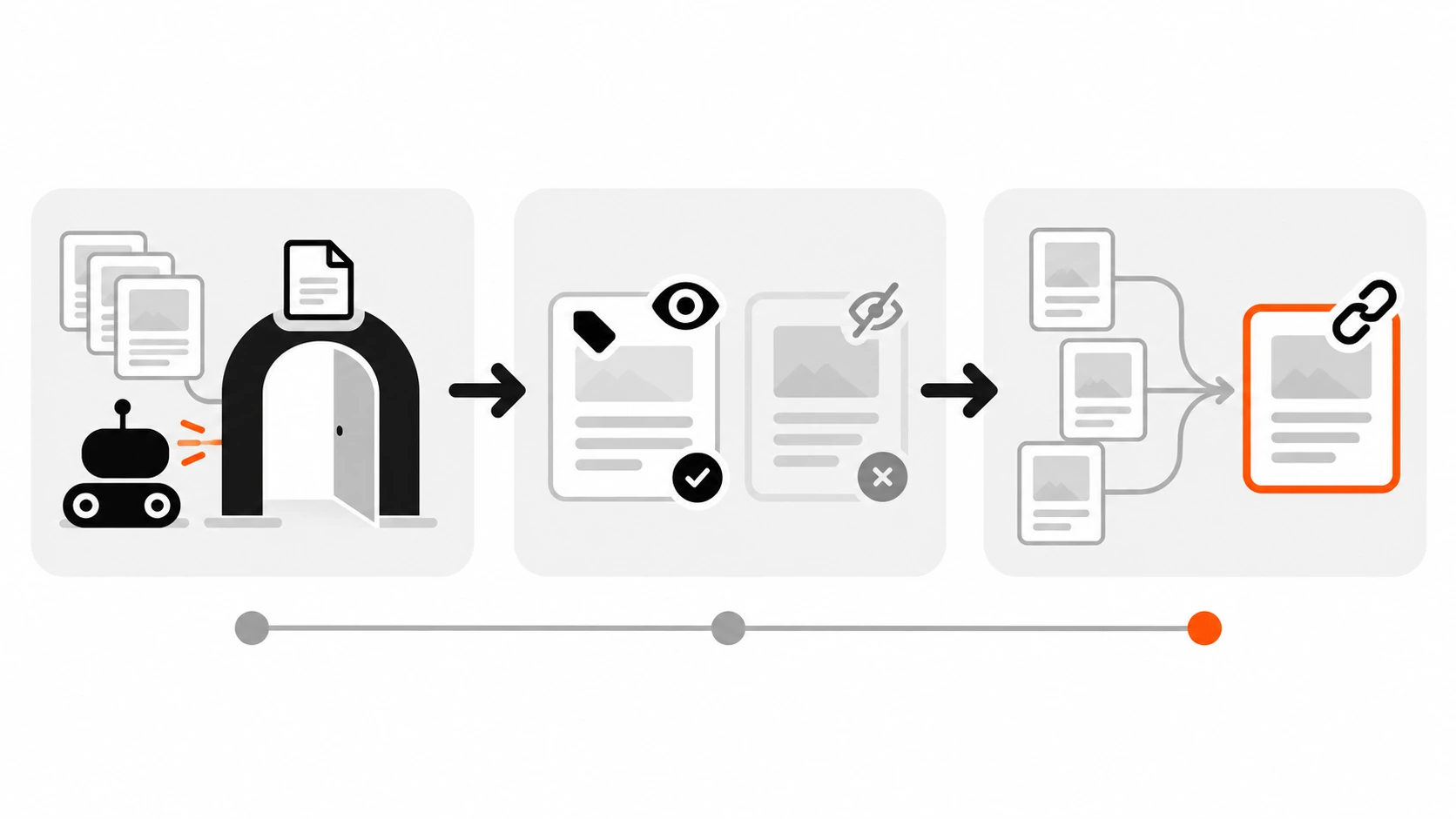
The order matters. A rule at a later gate is only read if the earlier gate lets the crawler through. That single fact explains the most common indexing bug I see, and we will get to it in a minute.
robots.txt: a crawl gate, not a privacy wall
robots.txt is a plain text file at the root of a host, like https://example.com/robots.txt. Google’s own documentation is blunt about its purpose: it is used mainly to avoid overloading your site with requests, and it is not a mechanism for keeping a web page out of Google.
A typical file looks like this:
User-agent: *
Disallow: /wp-admin/
Allow: /wp-admin/admin-ajax.php
Disallow: /cart/
Disallow: /*?orderby=

Sitemap: https://example.com/sitemap.xml
Here is what that file does and does not do:
- It asks crawlers not to request URLs under
/wp-admin/,/cart/, and any URL containing?orderby=. - It does not stop those URLs from being indexed. If other pages link to a disallowed URL, Google can still index the bare URL using the link text, and show it without a description.
- It does not protect anything. The file is public, and bad bots ignore it. If anything, a robots.txt full of
Disallow: /secret-admin-panel/lines is a map for curious people.
A few details from Google’s robots.txt specification that come up in real audits:
- Each host has its own file.
www.example.com,example.com,staging.example.com, andshop.example.comare separate. A rule on one does nothing for the others. - The most specific rule wins. Google picks the matching rule with the longest path. If an
Allowand aDisalloware equally specific, Google uses the less restrictive one, which is theAllow. - Paths are case-sensitive.
Disallow: /Private/does not block/private/. crawl-delayis ignored by Google. Other crawlers may respect it, Googlebot does not.- There is a 500 KiB size limit. Anything after that is ignored.
- Google caches the file, generally for up to 24 hours, so a change is not instant. (It can adjust that based on the
Cache-Controlmax-age, which is one more reason to set sane cache headers, as I covered in my Cache-Control headers guide.) - A
noindexline inside robots.txt does nothing. Google stopped supporting it in 2019. If you find one in an old file, it is decoration.
So when is robots.txt the right tool? When the problem is crawling, not indexing:
- Crawl traps: endless filter and sort combinations, calendar pages that go on forever, internal search URLs with every possible query.
- Expensive URLs you never want hit by bots, like cart actions or heavy export endpoints.
- Media files you do not want in image or video results (for images and video, robots.txt does keep them out of Google’s results).
And when is it the wrong tool? When you want a page gone from search, when you want something private, or when the URL already has a noindex rule you need Google to see.
One more warning: do not block the CSS and JavaScript files your pages need to render. Google renders pages to understand them, and it will not render JavaScript from blocked files. Blocking /wp-includes/ or your /_next/static/ folder “to save crawl budget” is a good way to make Google see a broken page.
noindex: the index gate
noindex is a rule you send with the page itself. There are two ways to send it, and they have the same effect.
As a meta tag in the HTML:
<meta name="robots" content="noindex">Or as an HTTP response header:
X-Robots-Tag: noindexThe header version is the one people forget, and it is the one that works for files that have no HTML head: PDFs, images, Word documents, CSV exports. On Apache or NGINX you can set it for a whole file type:
# Apache (.htaccess or httpd.conf)
<Files ~ "\.pdf$">
  Header set X-Robots-Tag "noindex, nofollow"
</Files>

# NGINX
location ~* \.pdf$ {
  add_header X-Robots-Tag "noindex, nofollow";
}
A few useful details from Google’s robots meta tag documentation:
name="robots"targets all crawlers.name="googlebot"targets only Google’s web search crawler.noneis shorthand fornoindex, nofollow.nofollowhere means “do not follow the links on this page”. It is not the same thing asrel="nofollow"on a single link.- When rules conflict, the more restrictive one wins.
max-snippet:50plusnosnippetmeans no snippet. noarchiveis no longer used by Google Search, because the cached link feature is gone. You can drop it from your templates.
The most important detail is the one people skip: noindex only works if the crawler can fetch the page. Google has to crawl the URL to see the tag or the header. Until it recrawls, the old indexed version stays. For a page Google does not visit often, that can take a long time. The URL Inspection tool in Search Console lets you request a recrawl for important URLs.
There is also a JavaScript trap. Google’s JavaScript SEO documentation says that when Google sees a noindex tag, it may skip rendering and JavaScript execution. So a single-page app that ships noindex in the initial HTML and plans to remove it with JavaScript once data loads may never get indexed. If a page should be indexed, do not put noindex in its original HTML. Adding noindex with JavaScript (for example on a client-side “product not found” view) is supported, but the server-side version is more predictable.
The classic mistake: Disallow plus noindex
Now we can explain the bug from the opening story. It usually starts with good intentions: “I want this section out of Google, so I will add noindex AND block it in robots.txt, to be extra safe.”
Before:
# robots.txt
User-agent: *
Disallow: /thank-you/
Disallow: /tag/
<!-- on every /thank-you/ and /tag/ page -->
<meta name="robots" content="noindex">Because robots.txt blocks the crawl, Google never downloads those pages, so it never reads the noindex. Google’s documentation says it directly: if a page is disallowed in robots.txt, any indexing rules on it are not found and are ignored. If those URLs are linked anywhere, internally or from other sites, they can stay in the index as bare URLs. In Search Console they show up as “Indexed, though blocked by robots.txt”.
After:
# robots.txt
User-agent: *
Disallow: /wp-admin/
Allow: /wp-admin/admin-ajax.php
<!-- still on every /thank-you/ and /tag/ page -->
<meta name="robots" content="noindex, follow">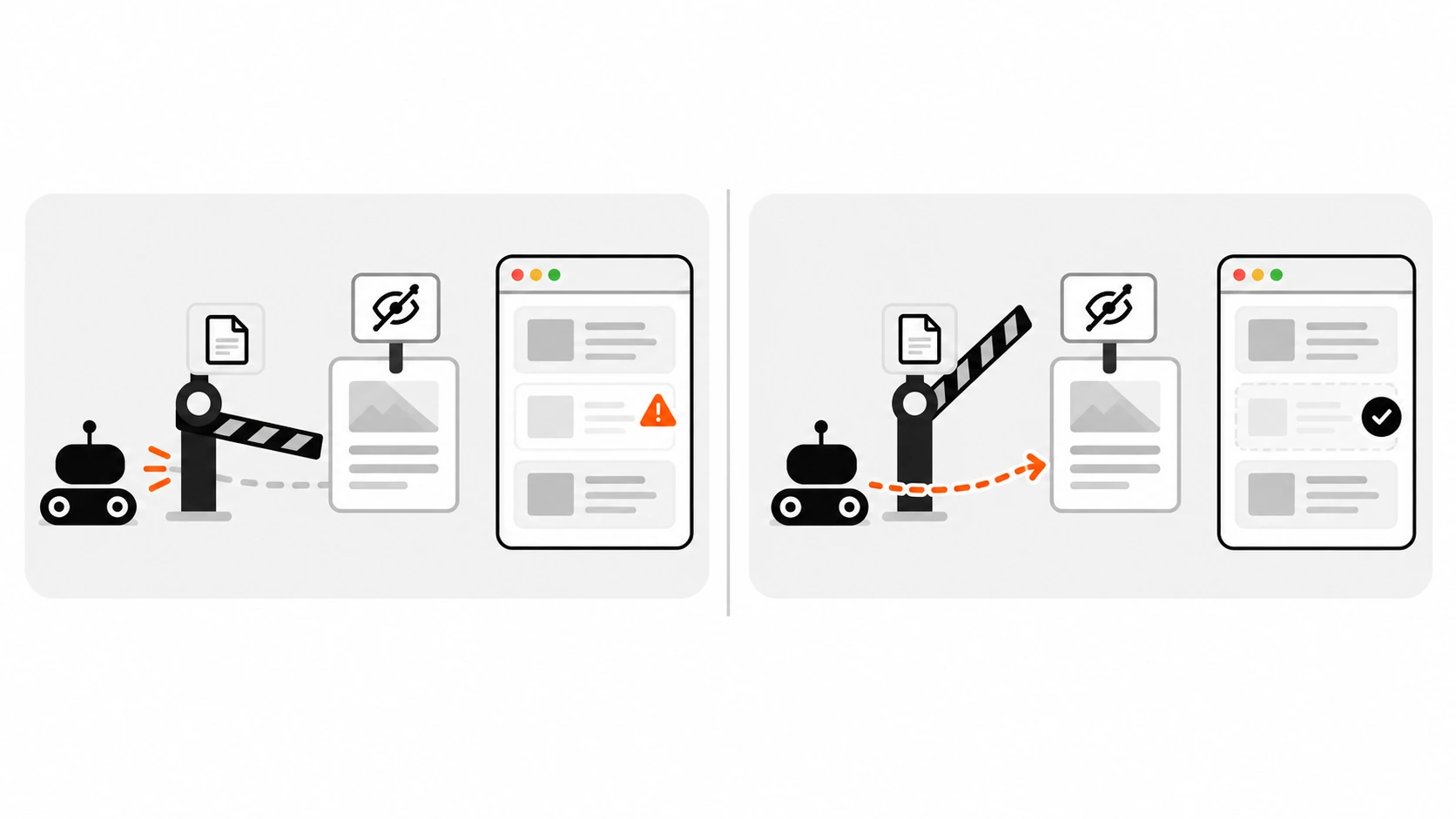
The fix is to pick one gate per goal. If the goal is “not in search results”, let Google crawl the pages and keep the noindex. Google recrawls them over the following weeks, sees the rule, and drops them. The “URL marked ‘noindex'” count in the Page indexing report goes up, which in this case is exactly what you want.
People often ask if they can add the Disallow back once the pages are gone. I do not. Blocking the crawl again means Google can no longer see the noindex, and the original problem can quietly come back the next time someone links to one of those URLs. Crawlable plus noindex is a stable state. For a handful of thank-you pages, the crawl cost is nothing.
The one case where I accept both is a true crawl trap with millions of URL combinations, where the server load matters more than a few stray bare URLs in the index. Even then I try to fix the cause (stop generating crawlable links to every combination) instead of relying on robots.txt alone.
Canonical: choosing the representative URL
The canonical tag solves a different problem: the same content is reachable at more than one URL. That happens all the time:
https://example.com/shoes/andhttps://example.com/shoes/?utm_source=newsletterhttps://example.com/product/blue-mug/andhttps://example.com/shop/mugs/blue-mug/- HTTP and HTTPS,
wwwand non-www, trailing slash and no trailing slash - A sorted or filtered listing that shows the same products in a different order
You declare the preferred version with a link element in the head of every version, including the preferred page itself:
<link rel="canonical" href="https://example.com/shoes/">How canonical signals work in practice:
- It is a strong hint, not a command. Google combines it with other signals and can pick a different URL. When that happens, Search Console reports “Duplicate, Google chose different canonical than user”, and URL Inspection shows both the “User-declared canonical” and the “Google-selected canonical”.
- Redirects are stronger. If a duplicate URL has no reason to exist, a 301 redirect beats a canonical tag. Sitemap inclusion is a weaker signal that supports both.
- Use absolute URLs. Relative canonicals work, but they are how a staging site ends up declaring itself canonical when it gets crawled.
- Self-reference every indexable page. Google recommends a canonical on the canonical page itself. It protects you from tracking parameters you did not anticipate.
- Keep the signals consistent. Do not list one URL in the sitemap and canonical to another. Do not link internally to the duplicate version. Do not let JavaScript change the canonical after load.
- Do not canonical paginated pages to page 1. Page 2 of a category is not a duplicate of page 1, it has different items. Give each page its own self-referencing canonical.
- For PDFs, use a header.
Link: <https://example.com/guide.pdf>; rel="canonical"works for non-HTML files.
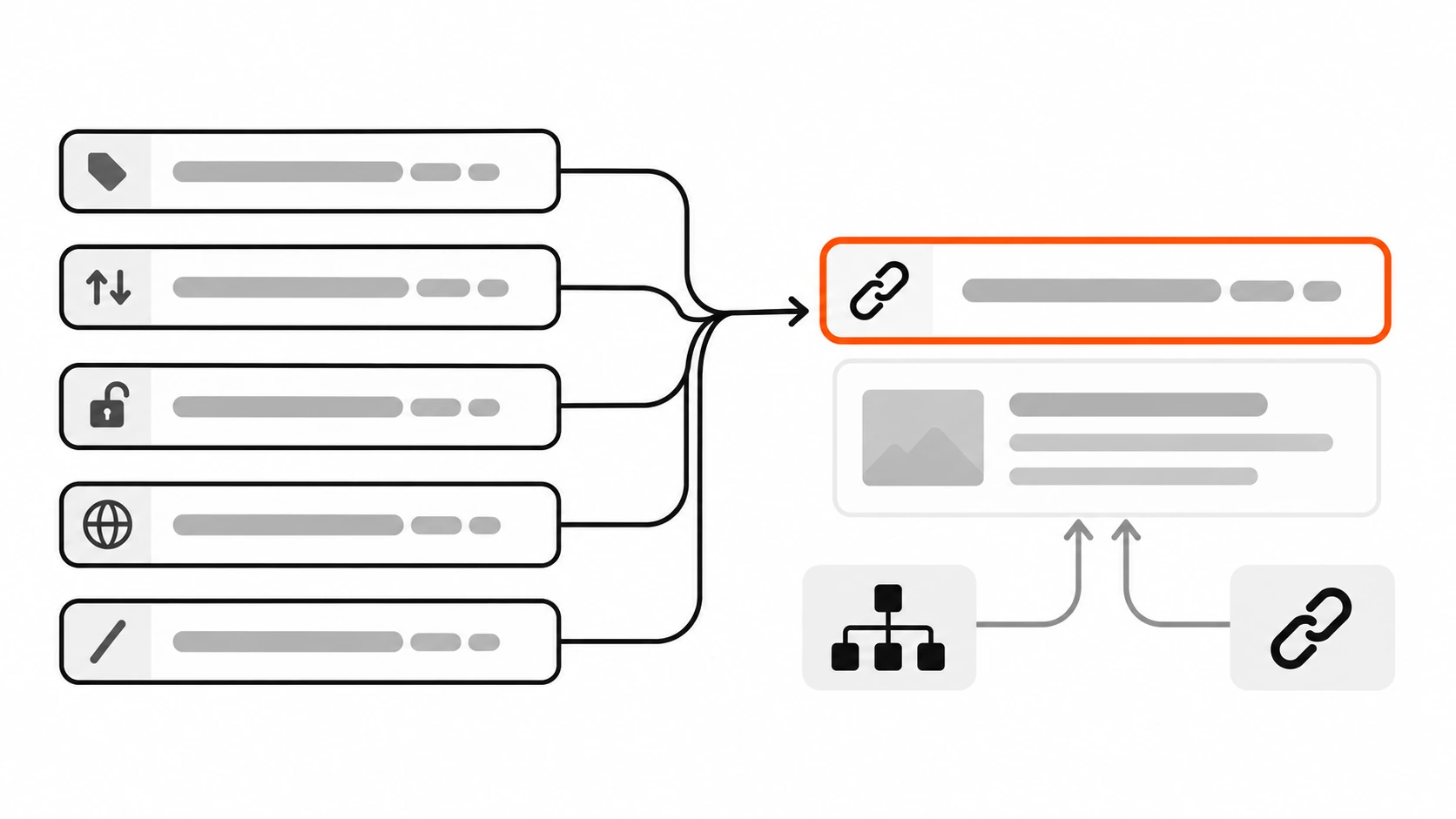
The mistake I see most often with canonicals is mixing them with noindex. A page that says noindex and also points its canonical at another URL is sending two different messages: “do not index me” and “I am a duplicate of that page, pass my signals over there”. Google’s canonicalization guide recommends against using noindex to pick a canonical within your own site, because noindex blocks the page completely. If the page is a duplicate, use the canonical alone. If it should not exist in search at all, use noindex alone.
Which tool for which page
This is the list I keep in my head during an audit. It covers most of the pages that end up in the wrong place.
- Staging and preview sites: HTTP authentication or a login wall first. Google cannot index what it cannot fetch. Add an
X-Robots-Tag: noindexheader as a second layer. Do not rely on robots.txt alone. - Internal site search results: noindex, follow. They are thin, endless, and rarely useful as landing pages.
- Thank-you, order confirmation, account, cart, and checkout pages: noindex. Cart and checkout can also be disallowed if bots hammer them, but then the noindex will not be seen, so pick based on whether the URLs are already indexed.
- Filtered and sorted listings: canonical to the clean category URL when the content is basically the same. If the combinations are endless, also stop linking to them with crawlable links.
- Tracking parameter URLs (
utm_,gclid): self-referencing canonicals on the clean URL handle them. - PDFs and other files:
X-Robots-Tagheader for noindex,Linkheader for canonical. - A page you deleted on purpose: return 404 or 410. If there is a real replacement, 301 redirect to it.
- A page that leaked and must disappear today: the Removals tool in Search Console hides it for about six months. That buys time. It is not the fix. Delete the page, protect it, or noindex it during that window.
- Anything private: authentication. Never robots.txt.
WordPress: what core and Yoast already do
WordPress handles more of this than most people realize, and knowing the defaults prevents double work.
The “Discourage search engines” checkbox. Under Settings, Reading, the option “Discourage search engines from indexing this site” sets the blog_public option to 0. Since WordPress 5.7, core outputs the robots meta tag through wp_robots() and the wp_robots filter, and when blog_public is 0, wp_robots_noindex() adds noindex, nofollow to every front-end page. Since WordPress 5.3, core no longer adds Disallow: / to the virtual robots.txt for this setting, exactly because a crawl block would hide the noindex. Core got the Disallow plus noindex lesson right years ago.
The flip side: this checkbox is the number one launch-day mistake I find. A site is built with it checked, goes live, and nobody unchecks it. Put it on your launch checklist.
The virtual robots.txt. If there is no physical robots.txt file, WordPress generates one with do_robots(). By default it disallows /wp-admin/ and allows /wp-admin/admin-ajax.php. You can change it with the robots_txt filter. A good use is blocking a pure action URL that wastes crawl, like the WooCommerce ?add-to-cart= links that appear on every shop listing. These are never pages anyone should land on from search:
add_filter( 'robots_txt', function ( $output, $public ) {
    if ( $public ) {
        // Keep the new rule inside the default "User-agent: *" group.
        $output = str_replace(
            "Allow: /wp-admin/admin-ajax.php\n",
            "Allow: /wp-admin/admin-ajax.php\nDisallow: /*?add-to-cart=\n",
            $output
        );
    }
    return $output;
}, 10, 2 );
I insert the line right after the default Allow line instead of appending it at the end, because core and SEO plugins may already have added a Sitemap: line there, and I like my rules grouped where every parser expects them.
If a physical robots.txt exists in the web root, the server returns that file and this filter never runs. I have lost time on that one more than once.
Custom noindex rules in core. For pages that need a rule your SEO plugin does not cover, the wp_robots filter takes an associative array of directives:
add_filter( 'wp_robots', function ( $robots ) {
    if ( is_page_template( 'templates/thank-you.php' ) ) {
        $robots['noindex'] = true;
        $robots['follow']  = true;
    }
    return $robots;
} );
If you run Yoast SEO, I set robots rules through its settings or its wpseo_robots filter instead, so one system owns the tag and nobody has to guess which code wins.
Yoast SEO defaults and controls. A few things Yoast does that are worth knowing:
- Each post and page has an Advanced tab in the Yoast sidebar or metabox with “Allow search engines to show this content in search results?”. Set it to No to noindex that one URL. By default only editors and administrators can see that tab.
- In Yoast’s Settings you can switch off whole content types, taxonomies, and archives (author and date archives live under Advanced).
- Internal search pages and 404 pages are set to
noindex, followby default. - Yoast outputs a self-referencing canonical on indexable pages, and the canonical can be overridden per post or with the
wpseo_canonicalfilter. - Its XML sitemaps leave out posts that are noindexed and posts with a manual canonical pointing elsewhere, so your sitemap stays a list of URLs you actually want indexed.
Headless WordPress. If WordPress only serves content to a separate front end (Next.js, React, anything else), the WordPress host usually still renders its theme at its own public URLs. If those URLs are crawlable, they can compete with your real front end as duplicates. Two clean options: redirect public theme URLs to the matching front-end URLs, or send noindex for everything the theme renders. The front end should always print absolute canonicals pointing at the front-end domain. If your front end loads images from the WordPress uploads folder, think before you noindex those files, because that also removes them from image search.
Next.js: robots.ts, metadata, and headers
In the App Router, all three controls have first-class APIs.
robots.txt comes from app/robots.ts (or a static app/robots.txt):
// app/robots.ts
import type { MetadataRoute } from 'next'

export default function robots(): MetadataRoute.Robots {
  return {
    rules: {
      userAgent: '*',
      allow: '/',
      disallow: ['/api/', '/cart/'],
    },
    sitemap: 'https://example.com/sitemap.xml',
  }
}
If you use Middleware or Proxy, make sure your matcher skips robots.txt and sitemap.xml, so an auth redirect never hides them. I showed that matcher pattern in my Next.js Middleware and Proxy guide.
noindex and canonical come from the Metadata API. Set metadataBase once in the root layout so relative canonicals resolve to absolute URLs:
// app/layout.tsx
import type { Metadata } from 'next'

export const metadata: Metadata = {
  metadataBase: new URL('https://example.com'),
}
// app/search/page.tsx
import type { Metadata } from 'next'
export const metadata: Metadata = {
robots: { index: false, follow: true },
alternates: { canonical: '/search' },
}That renders <meta name="robots" content="noindex, follow"> and <link rel="canonical" href="https://example.com/search">. For dynamic routes, return the same fields from generateMetadata, and build the canonical from the clean slug, never from the incoming URL with its query string.
One gotcha: Next.js merges metadata from layouts and pages shallowly. If a layout sets robots and a page also sets robots, the page object replaces the layout object completely. That is usually what you want, but it means a page cannot “add one directive” to its parent’s robots settings without restating the rest.
Staging is where a header is more robust than a meta tag, because it covers every response, including files. In next.config.ts you can add X-Robots-Tag only for a preview host:
// next.config.ts
import type { NextConfig } from 'next'

const nextConfig: NextConfig = {
  async headers() {
    return [
      {
        source: '/:path*',
        has: [{ type: 'host', value: 'staging.example.com' }],
        headers: [{ key: 'X-Robots-Tag', value: 'noindex, nofollow' }],
      },
    ]
  },
}

export default nextConfig
On Vercel, the VERCEL_ENV environment variable (production, preview, or development) is another clean switch for preview deployments. Whatever you use, test production after deploy to confirm the header did not leak into it. A staging noindex that ships to production is the same launch-day disaster as the WordPress checkbox.
How I audit indexing on a client site
This takes me about half an hour on a small site, and it catches nearly every problem in this article.
- Check each host’s robots.txt. Open
/robots.txtonwww, non-www, and every subdomain that serves pages. Look forDisallow: /, blocked asset folders, and leftovernoindexlines. - Check headers and HTML on key templates. Home page, a post, a category, a product, search results, a thank-you page, and a PDF.
- Run URL Inspection on the important URLs. Look at “Indexing allowed?”, the user-declared canonical, and the Google-selected canonical. Use “Test live URL” after a fix.
- Read the Page indexing report reasons. “URL blocked by robots.txt” and “URL marked ‘noindex'” are fine when they match your intent. “Indexed, though blocked by robots.txt” almost always means a Disallow plus noindex conflict. “Duplicate, Google chose different canonical than user” means your canonical signals disagree with each other. “Alternate page with proper canonical tag” is good news.
- Check the sitemap. It should only list URLs that return 200, are indexable, and are their own canonical. A noindexed or redirected URL in a sitemap is a mixed signal.
- Repeat after launch. The staging-to-production switch is when most of these settings flip, so I run steps 1 and 2 again on launch day.
For step 2 I use a tiny Node script instead of clicking through view-source. It needs Node 18 or newer for built-in fetch:
// check-indexing.mjs - usage: node check-indexing.mjs https://example.com/ https://example.com/blog/
const urls = process.argv.slice(2)

for (const url of urls) {
  const res = await fetch(url, { redirect: 'manual' })
  const html = res.headers.get('content-type')?.includes('text/html') ? await res.text() : ''
  const metaRobots = html.match(/<meta[^>]+name=["']robots["'][^>]*>/i)?.[0] ?? '-'
  const canonical = html.match(/<link[^>]+rel=["']canonical["'][^>]*>/i)?.[0] ?? '-'
  console.log(url)
  console.log('  status:      ', res.status, res.headers.get('location') ?? '')
  console.log('  x-robots-tag:', res.headers.get('x-robots-tag') ?? '-')
  console.log('  link header: ', res.headers.get('link') ?? '-')
  console.log('  meta robots: ', metaRobots)
  console.log('  canonical:   ', canonical)
}
The regexes are deliberately simple. They read the server HTML, which is what matters most, because that is what every crawler sees first. For a client-rendered app, also check the rendered result with URL Inspection.
If your pages also carry structured data, an indexing audit is a good moment to validate it, since rich results only show for pages that are indexed in the first place. My JSON-LD structured data guide covers that part.
My rules of thumb
When I hand a site over, these are the rules I leave in the documentation:
- robots.txt is for crawl load. noindex is for search results. Canonical is for duplicates. One tool per goal.
- Never block a URL in robots.txt if you need Google to read its noindex.
- Private means authentication, not robots.txt.
- Every indexable page has an absolute, self-referencing canonical, and the sitemap agrees with it.
- Use the
X-Robots-Tagheader for files and for whole environments like staging. - Check the “Discourage search engines” checkbox, staging headers, and robots.txt on launch day, every time.
- When Search Console disagrees with you, read the exact reason name before changing anything. It usually tells you which gate is wrong.
Indexing control is not glamorous work, but it is some of the highest-leverage SEO work there is. A ranking strategy cannot help a page that Google was told not to read, and it cannot help the right page if Google is busy indexing three copies of it.