WCAG 2.2 Checklist: 6 New Accessibility Rules and How to Fix Them on Real Sites
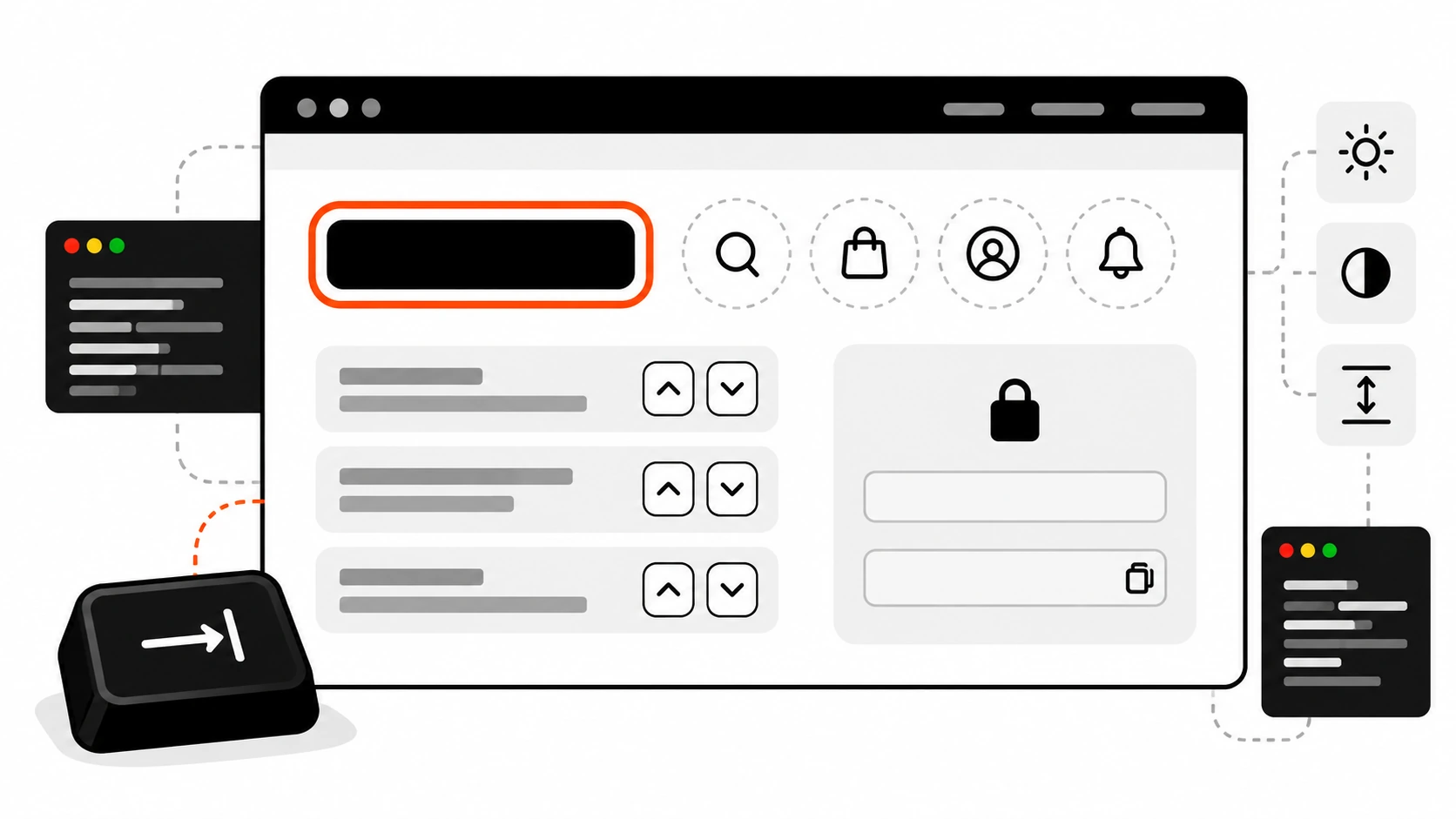
The sticky header looked great in every design review. Then I unplugged my mouse, pressed Tab a few times, and watched the focus ring disappear behind it.
Nothing was broken in the code. The link was focused, the outline was there, the screen reader announced it. It was just hidden under 72 pixels of white header. That scene is a composite of a few audits rather than one specific site, but the pattern is very real, and it is exactly the kind of problem WCAG 2.2 was written to catch.
WCAG 2.2 became a W3C Recommendation on 5 October 2023. It added 9 new success criteria to WCAG 2.1 and removed one old one. Six of the new criteria are at Level A or AA, which is the level most clients, agencies and procurement checklists ask for. This post is the WCAG 2.2 checklist I actually use: what each new rule means in plain words, how it fails on real websites, and the code I use to fix it. Every snippet below was run in a small test page in Chrome before I wrote it down.
What actually changed in WCAG 2.2
Here are the 9 new success criteria, grouped by level:
- 2.4.11 Focus Not Obscured (Minimum) – AA
- 2.4.12 Focus Not Obscured (Enhanced) – AAA
- 2.4.13 Focus Appearance – AAA
- 2.5.7 Dragging Movements – AA
- 2.5.8 Target Size (Minimum) – AA
- 3.2.6 Consistent Help – A
- 3.3.7 Redundant Entry – A
- 3.3.8 Accessible Authentication (Minimum) – AA
- 3.3.9 Accessible Authentication (Enhanced) – AAA
The one removal is 4.1.1 Parsing. It is marked obsolete in WCAG 2.2, because browsers now handle parsing errors far better and assistive technology relies on the browser instead of parsing markup itself. Problems that used to fail 4.1.1 now fail other criteria, such as 1.3.1 Info and Relationships or 4.1.2 Name, Role, Value. Everything else from WCAG 2.0 and 2.1 is still there. So if your site already meets WCAG 2.1 AA, getting to WCAG 2.2 AA means handling the six new A and AA criteria. That is a much smaller job than most people expect, and most of it is design and UX work, not deep engineering.
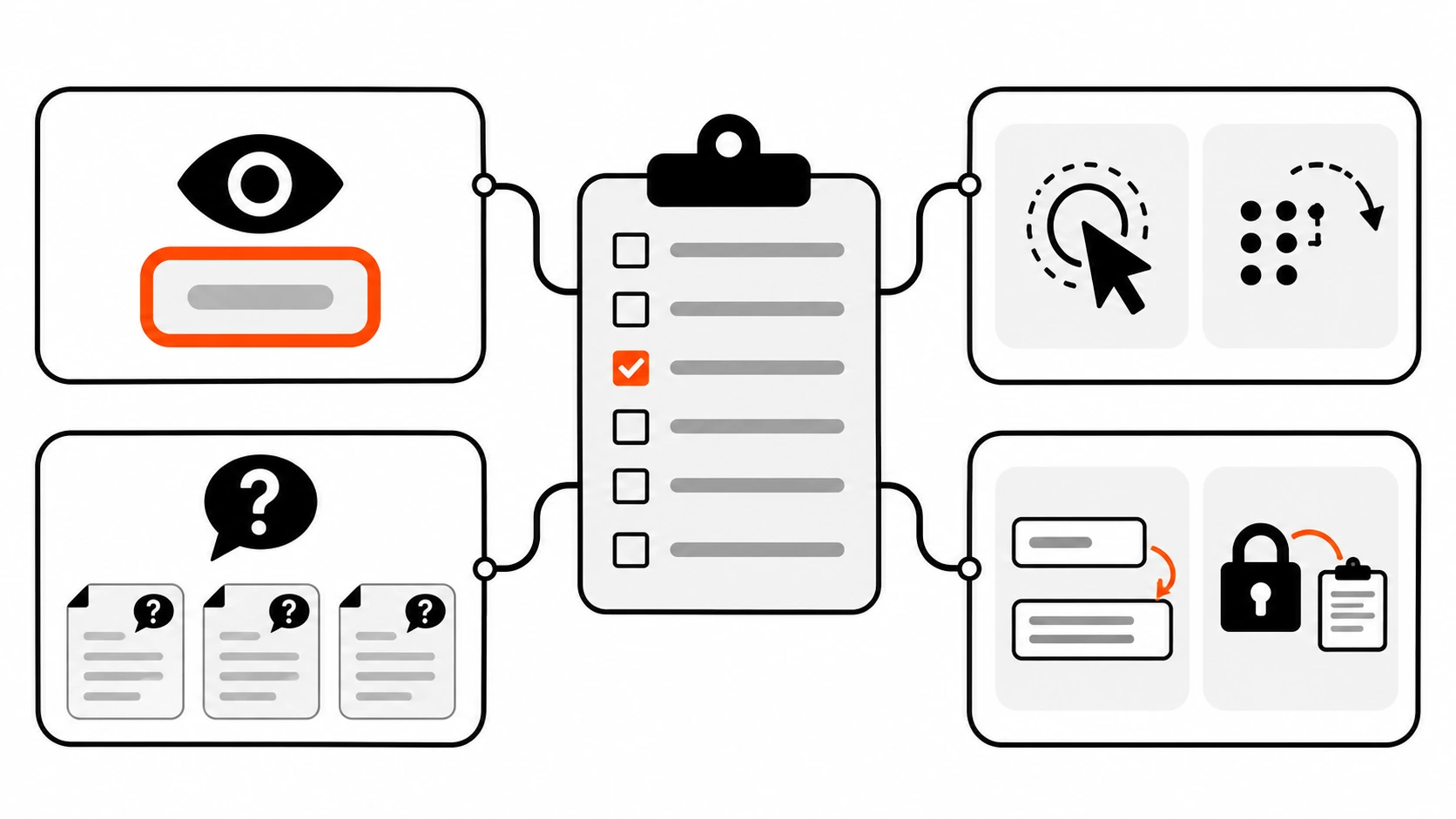
I group the six into four themes when I explain them to clients:
- Seeing focus: 2.4.11 Focus Not Obscured.
- Pointer input: 2.5.7 Dragging Movements and 2.5.8 Target Size.
- Finding help: 3.2.6 Consistent Help.
- Forms and logins: 3.3.7 Redundant Entry and 3.3.8 Accessible Authentication.
Let me go through them in the order I usually find failures.
2.4.11 Focus Not Obscured: sticky headers, cookie bars and chat widgets
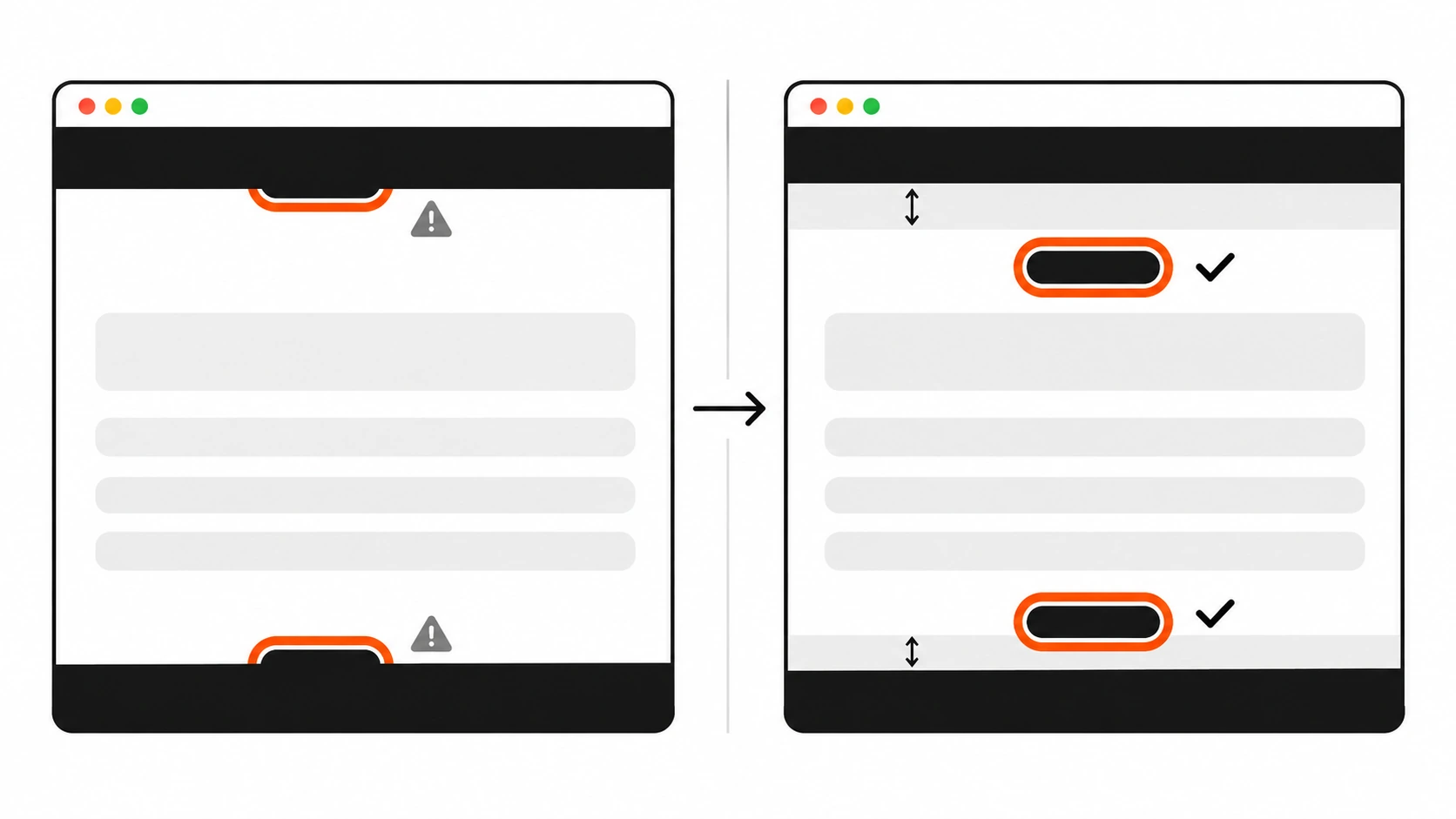
The rule is short: when a component receives keyboard focus, it must not be entirely hidden by content the author created. At AA, partly hidden is allowed. At AAA (2.4.12), no part of it may be hidden.
The usual culprits are sticky headers, fixed cookie banners, fixed “chat with us” buttons, and non-modal panels that stay open. The W3C even lists this as a documented failure (F110): a sticky header or footer that completely hides the focused element.
Here is the pattern that fails. When you press Tab, the browser scrolls the next focusable element into view, but it does not know your header is sitting on top of the viewport. When you tab backwards with Shift+Tab, the element lands at the top edge, right under the sticky header. When you tab forwards, it lands at the bottom edge, right under the cookie bar.
In my test page (a 72 pixel sticky header and a 96 pixel fixed cookie banner), tabbing forward left nine elements completely hidden behind the banner, including all six boxes of a one-time code field. Tabbing backwards hid links under the header.
The fix the W3C recommends (technique C43) is scroll-padding. It tells the browser that part of the scroll container is covered, so anything scrolled into view, including by focus, should land inside the visible area:
html {
  /* header height + a little breathing room */
  scroll-padding-top: 88px;
  /* cookie bar height + breathing room */
  scroll-padding-bottom: 112px;
}

/* scroll-padding cannot scroll past the end of the page,
   so give the last items room above a fixed bottom bar */
body {
  padding-bottom: 96px;
}
That second rule is the bit I missed the first time. With only scroll-padding, the very last link on the page was still hidden, because the page could not scroll any further. Adding bottom padding equal to the banner height fixed it. After both changes, my check found zero hidden elements in either direction.
A few more things that help:
- If the header height changes at breakpoints, set the value with a custom property and update it in the same media queries, so it never drifts out of sync.
- A cookie banner can also pass by being modal (focus moves into it until the user makes a choice), or by not covering content at all.
- A properly built modal dialog always passes, because focus moves into it. If you are still using a homemade div modal, my post on the HTML dialog element and accessible modals shows how to let the browser handle focus for you.
- Chat widgets that the user opens and that stay open are allowed to cover content, as long as the user can reveal the focused item without moving focus, for example by pressing Escape to close the widget.
Focus appearance is AAA, but I still treat it as a habit
2.4.13 Focus Appearance is AAA, so it is not required for AA. I still follow its spirit because it costs almost nothing. The AAA rule asks for an indicator whose area is at least as large as a 2 CSS pixel thick outline around the component, with at least 3:1 contrast between the focused and unfocused pixels. An indicator like that is easy to spot on any background. I usually ship this:
:focus-visible {
  outline: 3px solid #ff3e00;
  outline-offset: 2px;
}
:focus-visible shows the ring when the browser decides focus should be evident, which in practice means keyboard users get it and mouse clicks on buttons usually do not. What I never do is outline: none without a replacement. That one line still breaks more sites than any of the new WCAG 2.2 rules.
2.5.8 Target Size (Minimum): the 24 pixel rule and its exceptions
This one gets misquoted a lot. The AA rule says a pointer target must be at least 24 by 24 CSS pixels, with five exceptions:
- Spacing: a smaller target is fine if a 24 pixel circle centered on it does not touch any other target, or the circle of another small target.
- Equivalent: another control on the same page does the same thing and meets the size.
- Inline: the target is a link inside a sentence, or its size is limited by the line height of surrounding text.
- User agent control: the browser decides the size and you have not changed it.
- Essential: that exact presentation is essential or legally required.
The famous 44 by 44 number is the older 2.5.5 Target Size, which is now called Target Size (Enhanced) and is AAA. So 24 is the minimum for AA, and 44 is a good goal for primary actions.
Where I see this fail most: icon-only buttons in headers (search, cart, account), close buttons on toasts and modals, pagination links, social icons in footers, and tiny “remove” crosses in tag inputs. They are often 16 or 20 pixels and packed right next to each other.
The fix is usually boring CSS. Keep the icon small, make the button bigger:
.icon-btn {
  min-width: 24px;
  min-height: 24px;
  display: inline-grid;
  place-items: center;
}

.icon-btn svg {
  width: 16px;
  height: 16px;
}
I do not trust my eyes for this, so I run a small check in the browser console (or inside Playwright). It finds targets smaller than 24 pixels that also fail the spacing exception, and it skips inline links inside sentences:
function findSmallTargets() {
  const selector = 'a[href], button, input:not([type="hidden"]), select, textarea, [role="button"], [tabindex]:not([tabindex="-1"])';
  const targets = [...document.querySelectorAll(selector)]
    .map((el) => ({ el, r: el.getBoundingClientRect() }))
    .filter((t) => t.r.width > 0 && t.r.height > 0)
    .filter((t) => {
      // skip targets covered by something else (for example content under a fixed banner)
      const top = document.elementFromPoint(t.r.left + t.r.width / 2, t.r.top + t.r.height / 2);
      return !top || top === t.el || t.el.contains(top);
    });
  const small = targets.filter((t) => t.r.width < 24 || t.r.height < 24);
  const center = (r) => ({ x: r.left + r.width / 2, y: r.top + r.height / 2 });
  const distToRect = (p, r) => Math.hypot(
    Math.max(r.left - p.x, 0, p.x - r.right),
    Math.max(r.top - p.y, 0, p.y - r.bottom)
  );
  const isInline = (el) =>
    getComputedStyle(el).display === 'inline' &&
    el.parentElement.textContent.trim() !== el.textContent.trim();

  return small
    .filter((t) => !isInline(t.el))
    .filter((t) => {
      const c = center(t.r);
      return targets.some((o) => o !== t && (
        distToRect(c, o.r) < 12 ||
        (small.includes(o) && Math.hypot(c.x - center(o.r).x, c.y - center(o.r).y) < 24)
      ));
    })
    .map((t) => ({
      name: t.el.getAttribute('aria-label') || t.el.textContent.trim() || t.el.tagName,
      size: `${Math.round(t.r.width)}x${Math.round(t.r.height)}`,
    }));
}

console.table(findSmallTargets());
On my test page it flagged three 16 by 16 header icons that sat 4 pixels apart. It correctly ignored a 35 by 21 “OK” button in the cookie bar, because nothing else was within 12 pixels of its center, so it passes the spacing exception. After the CSS fix above, the list was empty.
Two honest limits: it only checks what is in the viewport and not covered, so I scroll and run it again on long pages, and it cannot judge the Equivalent or Essential exceptions. It is a fast first pass, not a certificate.
2.5.7 Dragging Movements: every drag needs a click path
If something can only be done by dragging, some people simply cannot do it. A hand tremor, a head pointer or a mouth stick makes press, hold and move very hard. WCAG 2.2 says any dragging action must also be possible with a single pointer without dragging, unless dragging is essential.
The part that surprises developers: keyboard support does not automatically satisfy this. A touch screen user may not have a keyboard at all. The alternative has to work with a simple tap or click.
Common places it fails:
- Sortable lists and “drag to reorder” settings screens.
- Kanban boards where cards only move by dragging.
- Range sliders that only respond to dragging the thumb.
- File upload zones with no normal “Choose file” button.
- Image croppers and map views without buttons.
For a sortable list, my default is a pair of “Up” and “Down” buttons per item, plus a short status message:
<ul id="tasks">
  <li data-name="Write brief">Write brief
    <button type="button" data-move="up" aria-label="Move Write brief up">Up</button>
    <button type="button" data-move="down" aria-label="Move Write brief down">Down</button>
  </li>
  <!-- more items -->
</ul>
<p id="move-status" role="status"></p>
const list = document.getElementById('tasks');
const status = document.getElementById('move-status');
list.addEventListener('click', (e) => {
const btn = e.target.closest('button[data-move]');
if (!btn) return;
const item = btn.closest('li');
if (btn.dataset.move === 'up' && item.previousElementSibling) {
item.previousElementSibling.before(item);
} else if (btn.dataset.move === 'down' && item.nextElementSibling) {
item.nextElementSibling.after(item);
} else {
return;
}
btn.focus(); // moving the node can drop focus, so put it back
const position = [...list.children].indexOf(item) + 1;
status.textContent = `${item.dataset.name} moved to position ${position} of ${list.children.length}`;
});That btn.focus() line matters. In my test, moving the list item without it dropped focus, so a keyboard user would be thrown back to the top of the page after every move. With it, focus stays on the same button and the status message tells screen reader users where the item ended up. Keep the drag interaction for people who like it. Just do not make it the only way.
For kanban boards, a “Move to…” menu on each card does the same job. For sliders, let a click on the track move the thumb, or add a number input next to it.
3.2.6 Consistent Help: same help, same place
This is Level A and easy to pass, but easy to break during a redesign. If your site offers help on multiple pages, such as a phone number, an email address, a contact form link, a chat widget or a help page, it must appear in the same relative order on each of those pages.
It does not require you to offer help at all. It only says that if you do, users should not have to hunt for it. People with cognitive disabilities, and honestly anyone who is stressed and stuck in a checkout, benefit from help that never moves.
Where I see it break:
- The contact link sits in the header on marketing pages but only in the footer on the checkout.
- A chat widget loads on some templates but not others, or moves to a different corner on product pages.
- A landing page builder template uses a totally different footer from the rest of the site.
The fix is architectural, not visual. In React or Next.js, put help links in the shared layout, not in individual pages. In WordPress, keep them in a header or footer template part that every template uses. Then a new landing page cannot quietly drop them.
3.3.7 Redundant Entry: stop asking for the same thing twice
Within one process, if the user already gave you some information and you need it again, you must either fill it in for them or let them select it. The classic example is a checkout that asks for the shipping address and then asks for the billing address from scratch.
The W3C Understanding document is clear on one point people miss: browser autofill does not count. The site itself has to make the earlier answer available.
What passes:
- A “Billing address is the same as shipping” checkbox that copies the values.
- A review step that shows earlier answers with an Edit link, instead of new empty fields.
- Keeping what the user typed when the server returns a validation error, instead of clearing the form.
- Pre-filling the search box on the results page with the search term.
There are exceptions: when re-entry is essential (a memory game), when it is needed for security (confirming a new password), or when the earlier information is no longer valid.
For multi-step forms in React, I keep all steps in one state object in a parent component instead of separate local state per step. That way step three can read what step one collected without any extra plumbing. In plain HTML, sessionStorage is fine for a short process, as long as you do not store sensitive data there and you clear it at the end.
If you want the field-level basics (labels, error messages, autocomplete tokens, focus after submit), I covered those in my guide to accessible forms. Redundant Entry sits on top of that work.
3.3.8 Accessible Authentication (Minimum): logins without memory tests
This is the WCAG 2.2 rule with the biggest impact on real products. At AA, no step of a login may require a cognitive function test unless there is an alternative or a mechanism that helps. Remembering a password, solving a puzzle, and typing a code you read somewhere else are all cognitive function tests.
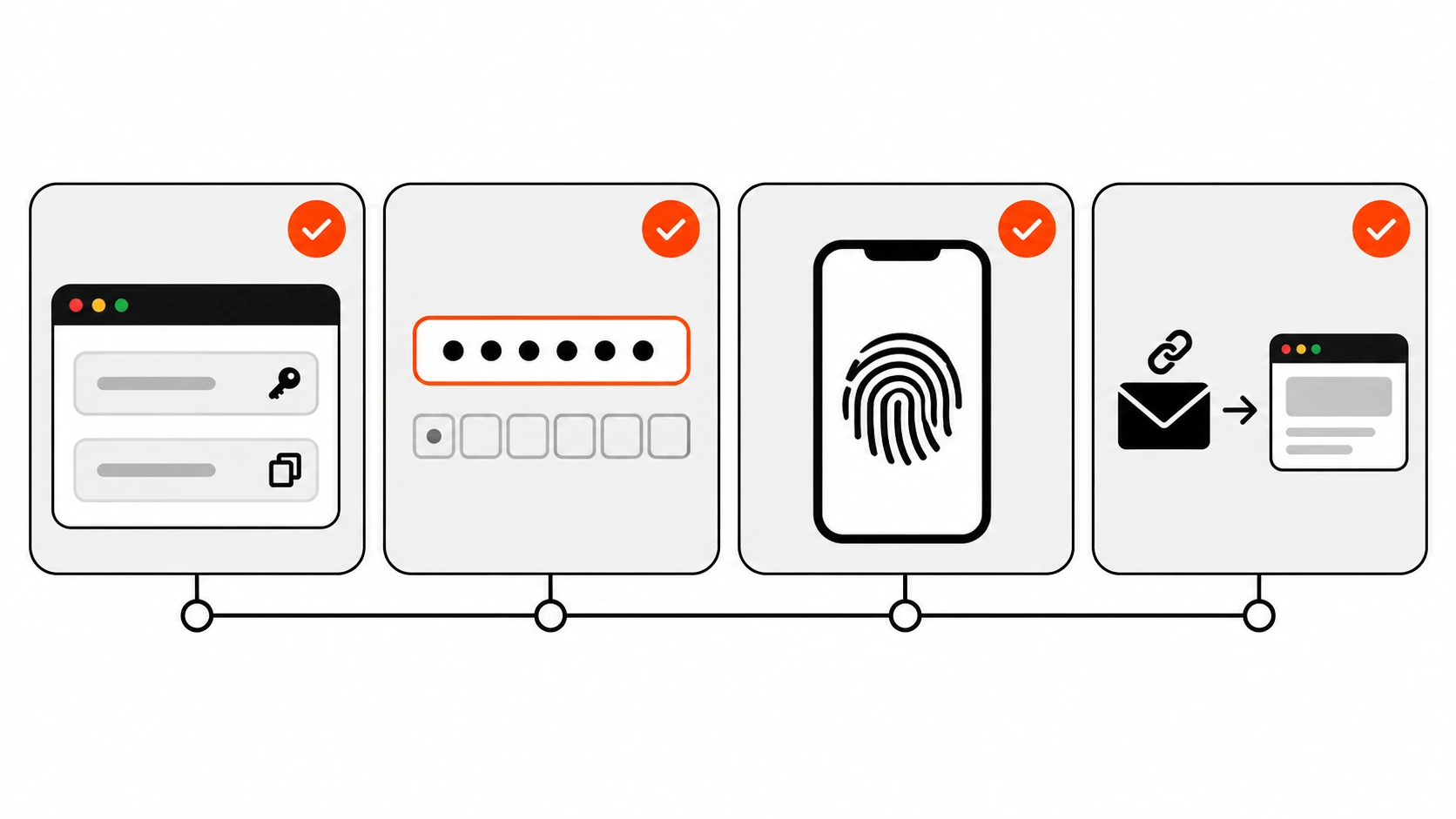
The good news: a normal email and password form passes, as long as password managers and paste work. The W3C explicitly lists password manager support and copy and paste as mechanisms that satisfy the rule.
Here is what fails in practice:
- Blocking paste on the password field (for example with an
onpastehandler that returns false). - Scripts that stop browsers or password managers from filling the fields.
- “Enter the 2nd, 5th and 7th character of your password” forms.
- Text CAPTCHAs where you have to type distorted characters, with no other path. An audio version that you also have to transcribe does not count as the alternative.
- One-time code inputs split into six boxes where pasting the code only fills the first box. This exact pattern is used as a failure example in the W3C Understanding document.
The login form I start from looks like this:
<form method="post" action="/login">
  <label for="email">Email</label>
  <input id="email" name="email" type="email" autocomplete="username" required>

  <label for="password">Password</label>
  <input id="password" name="password" type="password" autocomplete="current-password" required>

  <button type="submit">Log in</button>
</form>
The autocomplete values are what tell password managers which field is which. On sign up and password reset pages, use autocomplete="new-password" instead, so the manager offers to generate one.
For one-time codes, my strong preference is a single field:
<label for="otp">Verification code</label>
<input id="otp" name="otp" type="text" inputmode="numeric" autocomplete="one-time-code" maxlength="6">
inputmode="numeric" gives a number keypad on phones, and autocomplete="one-time-code" lets browsers that support it offer the code from a text message. Pasting works with zero JavaScript.
If a design really needs separate boxes, handle paste on the group and spread the digits:
const group = document.getElementById('otp-group');
const boxes = [...group.querySelectorAll('input')];

group.addEventListener('paste', (e) => {
  const digits = e.clipboardData.getData('text').replace(/[^0-9]/g, '').slice(0, boxes.length);
  if (!digits) return;
  e.preventDefault();
  boxes.forEach((box, i) => { box.value = digits[i] || ''; });
  boxes[Math.min(digits.length, boxes.length) - 1].focus();
});
In my test, pasting “482 913” into the first box filled all six boxes with 482913 and put focus on the last one. I still prefer the single input, because it also works with autofill and needs no script.
Beyond passwords, the easiest way to pass is to offer a login that needs no memory at all:
- Email magic links: the user types an email and clicks a link. This is the example the W3C itself uses.
- Passkeys (WebAuthn): the user signs in with fingerprint, face or device PIN. Adding the
webauthntoken as the last autocomplete value, as inautocomplete="username webauthn", tells the browser it can offer saved passkeys when the user focuses that field. - Sign in with an existing account (OAuth) for products where that makes sense.
On CAPTCHAs: at AA, a test that asks users to recognize objects (pick the pictures with a bus) is allowed by an exception. At AAA (3.3.9) it is not. My practical advice is to avoid user-facing puzzles where you can, and lean on server-side rate limiting and bot signals instead.
Also remember that a login is often more than one step. Every step must pass: the password page, the two-factor code page, and the account recovery flow too.
How I test WCAG 2.2 on a template
Automated tools catch some of this, but most of the new criteria need a person to try the interface. This is the routine I follow on each main template (home, listing, detail, form, checkout or login). It usually takes me under half an hour per template, which is a personal estimate, not a benchmark.
- Mouse in the drawer. Tab forward through the whole page, then Shift+Tab back. Watch for focus disappearing under sticky headers, footers, cookie bars and chat buttons.
- Run the target size check in the console at the top, then again after scrolling.
- Find every drag. Sortable lists, sliders, carousels, uploaders, maps. Try each with clicks only.
- Compare help placement across at least three pages of the same set, including checkout or account pages.
- Walk a full multi-step form and note every field that asks for something you already gave.
- Log in with a password manager, then paste a password, then paste a one-time code. Then try the password reset flow the same way.
- Zoom to 200 percent and repeat step 1. Sticky headers get taller relative to the viewport, and that is where focus hiding gets worse.
For the focus check, I also use a tiny helper that tells me whether the currently focused element is completely covered. It samples nine points across the element and asks the browser what is on top at each one:
function focusIsHidden() {
  const el = document.activeElement;
  if (!el || el === document.body) return null;
  const r = el.getBoundingClientRect();
  const points = [];
  for (const fx of [0.1, 0.5, 0.9]) {
    for (const fy of [0.1, 0.5, 0.9]) points.push([r.left + r.width * fx, r.top + r.height * fy]);
  }
  const visible = points.some(([x, y]) => {
    const top = document.elementFromPoint(x, y);
    return top && (top === el || el.contains(top));
  });
  return visible ? null : (el.getAttribute('aria-label') || el.textContent.trim() || el.tagName);
}
It is a sample, not a pixel-perfect test, but it is good enough to catch a header sitting on top of a link. If you already have end-to-end tests, you can press Tab in a loop and call this after each step. My Playwright testing guide covers the setup; the WCAG 2.2 part is just a few extra lines in a test.
What WCAG 2.2 did not change
A few things I get asked about:
- Your WCAG 2.1 work still counts. All the 2.0 and 2.1 criteria are still in 2.2, except the removed 4.1.1 Parsing. Contrast, alt text, labels, keyboard access and everything else are still required.
- Removing 4.1.1 is not permission for messy HTML. Duplicate IDs can still break label associations and ARIA references, and those failures now land under 1.3.1 or 4.1.2 instead.
- AAA is optional, but not useless. Focus Appearance and Target Size (Enhanced) at 44 pixels are good design targets for primary actions even if your contract only says AA.
- Overlays do not fix any of this. A script that adds a toolbar cannot make your login accept paste or give your kanban board a click path. The fixes live in your templates and components.
My WCAG 2.2 checklist
This is the short version I paste into project QA notes:
- Sticky and fixed elements never fully cover a focused element;
scroll-paddingis set onhtmland matches the real header and footer heights. - Every page has a visible
:focus-visiblestyle; no bareoutline: none. - Icon buttons, close buttons, pagination and tag remove buttons are at least 24 by 24 CSS pixels, or spaced so the 24 pixel circles do not touch.
- Every drag action has a click or tap alternative, and focus is kept after the move.
- Help links and chat appear in the same relative order on every page that has them.
- Multi-step forms carry earlier answers forward; billing can copy shipping; errors never wipe the form.
- Login, two-factor and reset flows allow paste and password managers, use the right
autocompletetokens, and offer at least one path with no memory test. - One-time codes use a single input, or a paste handler that fills every box.
Final thoughts
What I like about WCAG 2.2 is how practical it is. None of the six new A and AA rules ask for exotic technology. They ask you to stop hiding focus, stop making buttons tiny, stop forcing drags, keep help in one place, stop asking twice and stop turning logins into memory tests. Most of the fixes are a few lines of CSS, one checkbox, or deleting a script that blocks paste.
If you only do one thing this week, unplug your mouse and Tab through your own checkout or login page. That ten minute test is where I find most WCAG 2.2 problems, and it is usually the fastest one to fix.