WordPress Heartbeat API: Stop Background Polling From Slowing Admin and Checkout
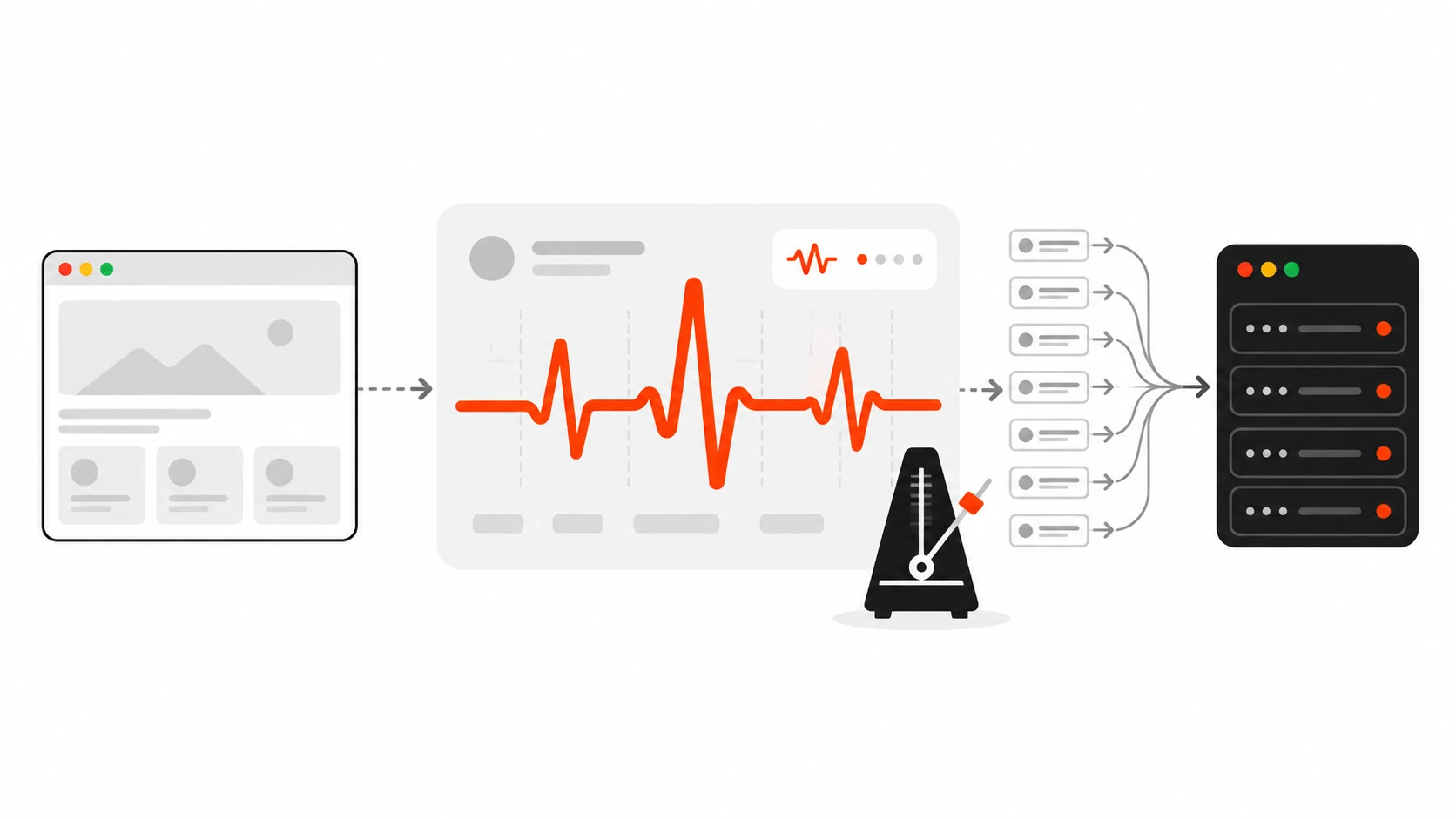
A few months ago a store owner sent me a screenshot of her hosting dashboard with one line: “Nobody is buying anything right now, so why is the server at 100 percent?” The shop was quiet. There were maybe three visitors on the site. But the CPU graph looked like a sale day, and the checkout page was taking six or seven seconds to respond.
The culprit was not a bot or a slow query. It was her team. Two shop managers each had a handful of wp-admin tabs open all day: orders, a couple of products, the dashboard, a page builder screen. Every one of those tabs was quietly sending a request to the server on a timer, and every request booted the whole of WordPress, all 40-odd plugins included. That timer is the WordPress Heartbeat API, and on a small hosting plan it can eat the same PHP workers your customers need to check out.
Heartbeat is not a bug. It powers useful things, and turning it off blindly breaks some of them. In this guide I will show you what Heartbeat actually does, how often it runs, how to see it in your own browser, and the exact snippets I use on client sites to calm it down without losing autosave, post locks or the “your session expired” login popup.
What the WordPress Heartbeat API actually is
Heartbeat arrived in WordPress 3.6 as a simple idea: give the browser a way to talk to the server on a regular schedule, so features like autosave and post locking do not each need their own polling loop. It lives in wp-includes/js/heartbeat.js, it is registered with the script handle heartbeat, and it depends on jQuery and wp-hooks.
Each “beat” is a normal AJAX request. The browser sends a POST to /wp-admin/admin-ajax.php with action=heartbeat, a security nonce, the current screen id (post, dashboard, edit-post, or front on the public side of the site), whether the tab has focus, and a data object that any script on the page can add to. On the server, WordPress runs wp_ajax_heartbeat(), passes the data through a few filters, and sends back a JSON response. Back in the browser, scripts listen for that response and update the screen.
The important detail is what “a normal AJAX request” means on WordPress. It is not a tiny lightweight ping. admin-ajax.php loads WordPress core, your theme’s functions.php, every active plugin and everything hooked to admin_init. It is a POST, so page caches and CDNs pass it straight through to PHP. For logged-in users, each beat costs roughly as much server work as an uncached page view, minus the HTML.
How often Heartbeat runs by default
Most older tutorials say “every 15 seconds on the editor, every 60 seconds everywhere else”. That was true for years, but if you read the current core code the numbers have moved a little:
- Default interval: 60 seconds on most admin screens. This is the
mainIntervalsetting inheartbeat.js. - The post editor: 10 seconds. The block editor adds an inline script that calls
wp.heartbeat.interval( 10 )to keep post locks fresh, and the classic editor does the same when the post lock dialog is on the page. - Background tabs: 120 seconds. When the tab loses focus, or there has been no mouse or keyboard activity for five minutes, Heartbeat slows down to two minutes. The code comment explains why it stops there: post locks expire after 150 seconds.
- Suspended: after 10 minutes of inactivity Heartbeat stops completely on most screens, and after 60 minutes it stops everywhere. On
post.phpandpost-new.phpcore disables the 10 minute suspension so an editor who walked away does not lose their lock too early. - Fast mode: any script can call
wp.heartbeat.interval( 'fast' ), which means every 5 seconds for up to 30 ticks before it falls back to the normal interval.
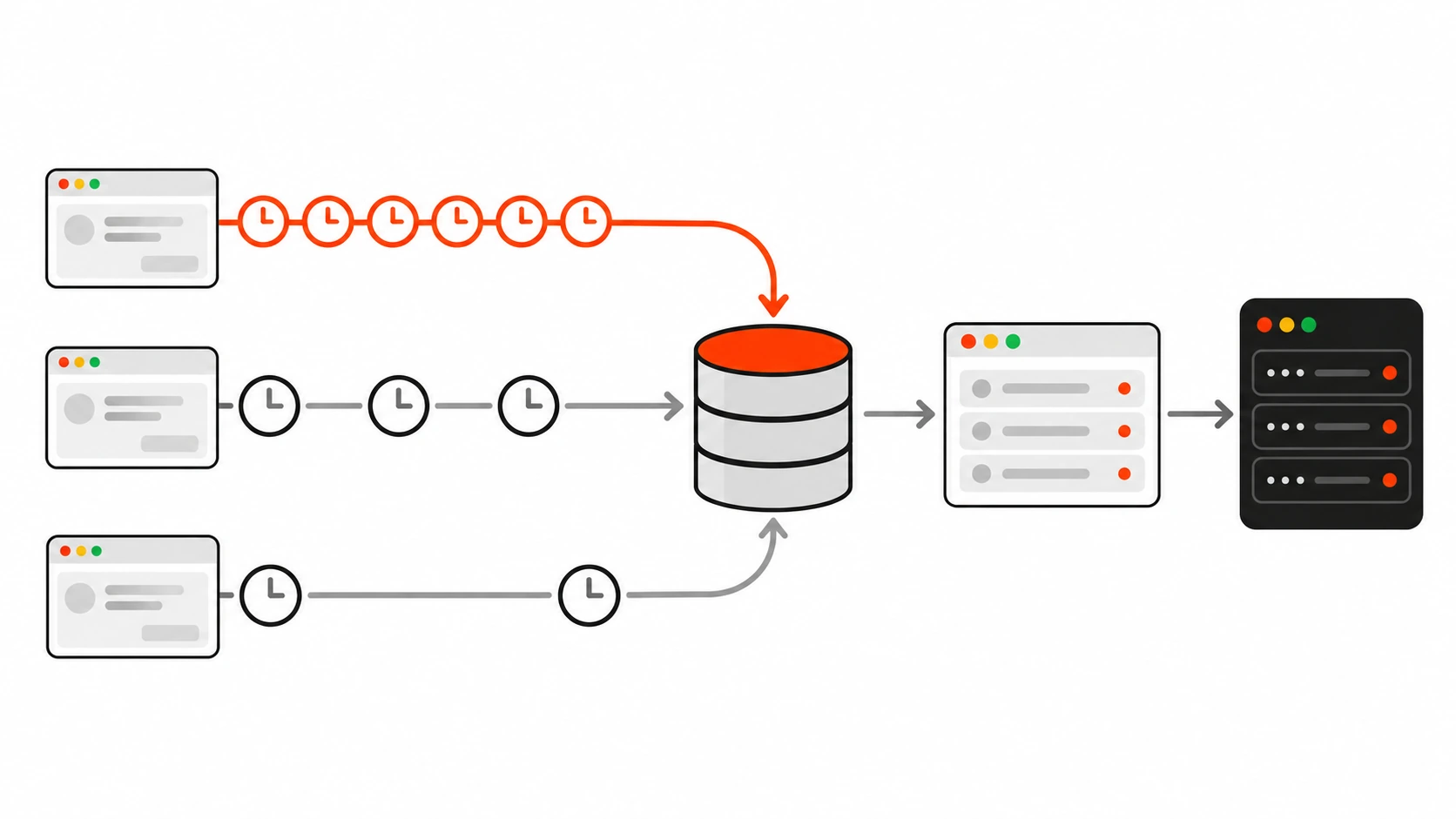
So the real cost depends on what people have open. A single editor tab in focus sends six requests a minute, which is 360 an hour. A dashboard tab sends 60 an hour. Multiply that by every tab, every staff member and every hour of the working day, and the shop owner’s mystery CPU graph stops being a mystery.
What Heartbeat powers on a normal site
Before you touch anything, it helps to know what is riding on Heartbeat, because these are the things you can break:
- Post locking. When you open a post someone else is editing, WordPress warns you and lets you take over. That lock is refreshed on every beat. On the Posts list screen, the same mechanism shows the little lock icon next to posts being edited.
- Autosave in the classic editor. The classic editor’s
autosave.jssends your draft through Heartbeat. The block editor is different: it autosaves through the REST API on its own timer (theAUTOSAVE_INTERVALconstant, 60 seconds by default), but it still loads Heartbeat for post locks. - Session expiry and nonce refresh. Core hooks
wp_auth_checkinto every Heartbeat response. If your login cookie expires while you are writing, that is how WordPress knows to show the “please log in again” modal instead of letting you lose your work. Heartbeat also hands out fresh nonces on edit screens when the old ones are about to expire. - WooCommerce order locks. With the newer order storage (HPOS), WooCommerce uses Heartbeat to lock an order while a shop manager is editing it and to show locked orders in the list.
- Plugin features. Page builders, form plugins, membership and LMS plugins, live sales notifications, security dashboards and SEO tools sometimes hook into Heartbeat for “live” data. Some of them load it on the front end too.
That last group is where most of the trouble comes from. Core uses Heartbeat carefully. Plugins sometimes do not.
Why Heartbeat slows wp-admin and checkout
The pain shows up in three places, and they share one cause: PHP workers. A hosting plan can only run a fixed number of PHP processes at once. Every Heartbeat request occupies one of those workers for as long as it takes WordPress to boot, run the hooks and answer. On a site with a heavy plugin stack, that can be several hundred milliseconds per beat.
Shared and entry-level hosting. These plans often have a small worker limit and a CPU quota. A few busy admin tabs can sit on a noticeable share of that capacity all day. When a real visitor needs a worker, they queue. Hosts sometimes respond by throttling the account, which slows everything, front end included.
WooCommerce checkout. On a stock WooCommerce install, the checkout page itself does not load Heartbeat. The problem is that checkout is the one page you cannot cache. Cart, checkout and account pages always need PHP, so they compete for the same workers as every Heartbeat request from your staff. When the shop managers have ten tabs open during a sale, customers are waiting in the same queue. If a theme or plugin also loads Heartbeat on the front end, every logged-in customer sitting on the checkout page adds their own beats to the queue.
Logged-in front ends. Membership sites, LMS platforms and community sites keep most users logged in, which already means no page cache for them. If something on the front end loads Heartbeat, every open lesson or forum tab becomes another polling client. A course with 300 students watching a live lesson can produce more Heartbeat traffic than real page views.
Here is the rough maths I showed that store owner. Two managers, five tabs each, one editor tab each, the rest on the dashboard or orders. That is two editor tabs at 360 requests an hour plus eight other tabs at 60 an hour: about 1,200 full WordPress boots an hour that nobody asked for, before a single customer arrives. On a plan with a handful of PHP workers, that is not background noise.
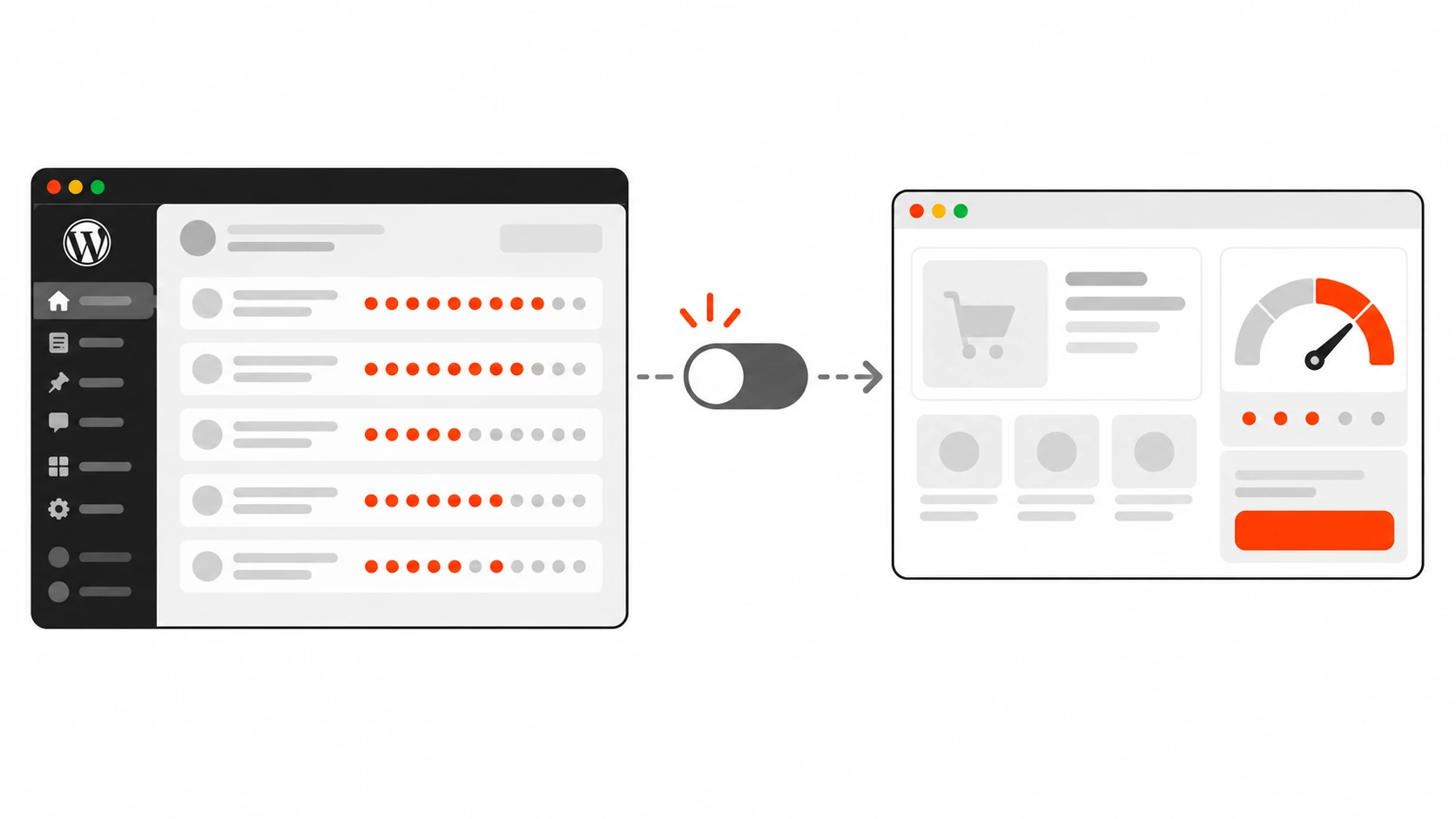
How to inspect Heartbeat traffic on your own site
Do not guess. Before changing anything I always look at what is actually happening, because the fix depends on which screens are noisy and which plugins are involved.
Watching it in the Network tab
Open any wp-admin screen, then open DevTools and go to the Network tab. Type admin-ajax in the filter box. Wait a minute. You will see POST requests to admin-ajax.php arriving on a rhythm. Click one and open the Payload tab. A Heartbeat request shows form data like this:
action: heartbeat
interval: 10
screen_id: post
has_focus: true
_nonce: 3f9c1a2b4d
data[wp-refresh-post-lock][post_id]: 142
data[wp-refresh-post-lock][lock]: 1760345678:1
The interval tells you how often this screen beats. The keys inside data[...] tell you who is using it: wp-refresh-post-lock is core’s post lock, wp_autosave is classic autosave, and anything with a plugin prefix is that plugin. The Response tab shows what came back, usually something like {"wp-auth-check":true,"server_time":1760345688} plus whatever plugins added. Check the Timing tab too. If a beat takes 800 ms, you are paying that on every tick.
Then do the same on the front end while logged in. Open your homepage and a product page, filter by admin-ajax, and look for screen_id: front. If you see it, something is loading Heartbeat for your visitors.
Listening from the browser console
Heartbeat fires jQuery events on the document, and they are handy for quick debugging. Paste this into the console on any screen that loads Heartbeat:
jQuery( document )
  .on( 'heartbeat-send.debug', function ( event, data ) {
    console.log( 'heartbeat-send', Object.keys( data ) );
  } )
  .on( 'heartbeat-tick.debug', function ( event, data ) {
    console.log( 'heartbeat-tick', data );
  } );

console.log( 'current interval:', wp.heartbeat.interval() );
heartbeat-send runs just before each request, with the data object scripts have queued. heartbeat-tick runs when the response arrives. There are also heartbeat-error, heartbeat-connection-lost and heartbeat-connection-restored if you are chasing a flaky connection. If wp.heartbeat is undefined, Heartbeat is not loaded on that page, which is exactly what you want to see on most front-end pages.
Logging it on the server
For a site with several editors, I add a small temporary logger as a must-use plugin, so I can see which screens and which features generate the traffic over a normal working day:
<?php
// wp-content/mu-plugins/heartbeat-log.php (temporary, remove after a day)
add_filter( 'heartbeat_received', function ( $response, $data, $screen_id ) {
    error_log( sprintf(
        '[heartbeat] user=%d screen=%s keys=%s',
        get_current_user_id(),
        $screen_id,
        implode( ',', array_keys( (array) $data ) )
    ) );
    return $response;
}, 1, 3 );
This needs WP_DEBUG_LOG enabled so error_log lands in wp-content/debug.log. One quirk: heartbeat_received only runs when the request carries data. Beats with an empty payload still hit the server, and you can count those with the heartbeat_tick action, which receives the response and the screen id on every beat. After a day, grep -c "screen=post" and friends on the log gives you a clear picture of where the requests come from.
Fix 1: remove Heartbeat from the front end
On most brochure sites, blogs and WooCommerce stores, nothing on the public side needs Heartbeat. Removing it there is the safest and biggest win. Put this in a small must-use plugin or your child theme:
add_action( 'wp_enqueue_scripts', function () {
    // Keep it in the Customizer preview and on any page that really needs it.
    if ( is_customize_preview() ) {
        return;
    }
    wp_deregister_script( 'heartbeat' );
}, 100 );
Why wp_deregister_script and not wp_dequeue_script? Dequeue only removes Heartbeat if it was enqueued directly. If a plugin enqueues its own script with heartbeat listed as a dependency, WordPress pulls Heartbeat straight back in and your dequeue does nothing. Deregistering removes the handle completely, so it cannot come back.
The trade-off is that any script depending on heartbeat is now missing a dependency, and WordPress silently skips it. That is usually what you want, but test the pages where a plugin shows live data. To see which scripts would be affected, list the dependents while logged in as an admin:
add_action( 'wp_print_scripts', function () {
    if ( ! current_user_can( 'manage_options' ) ) {
        return;
    }
    foreach ( wp_scripts()->registered as $handle => $script ) {
        if ( in_array( 'heartbeat', (array) $script->deps, true ) ) {
            error_log( 'depends on heartbeat: ' . $handle );
        }
    }
} );
If a membership or LMS feature genuinely needs it on one page, add a condition such as is_page( 'live-class' ) next to the Customizer check and return early there. A nice side effect: if Heartbeat was the only reason jQuery loaded on the front end, it may disappear from your pages too.
Fix 2: slow Heartbeat down with the heartbeat_settings filter
In wp-admin I almost never remove Heartbeat entirely. I slow it down. The heartbeat_settings filter controls the settings that heartbeat.js starts with, and there are two keys worth knowing:
intervalsets the starting interval in seconds, from 1 to 3600.minimalIntervalsets a floor, from 1 to 600 seconds. It overrides every shorter interval, including ones set later from JavaScript and the 5 second fast mode, and it cannot be changed after the page loads.
That difference matters more than most guides admit. On the editor, core sets the interval to 10 seconds from JavaScript after Heartbeat starts. So if you only set interval to 60 in PHP, the editor quietly switches back to 10 a moment later. minimalInterval is the setting that actually holds.
add_filter( 'heartbeat_settings', function ( $settings ) {
    global $pagenow;

    if ( in_array( $pagenow, array( 'post.php', 'post-new.php' ), true ) ) {
        // Editor: keep post locks and autosave, but no 10 second ticks.
        $settings['minimalInterval'] = 30;
    } else {
        // Dashboard, lists, settings, orders: every two minutes is plenty.
        $settings['interval'] = 120;
    }

    return $settings;
}, 20 );
Core itself uses $pagenow in the same filter to disable suspension on edit screens, so this is a safe place to make per-screen decisions. Do not push either value past 120 seconds on screens that use locks. Post locks expire after 150 seconds, and the core code warns that a floor longer than 120 seconds limits features like post locking. Two people could then edit the same post without either seeing a warning.
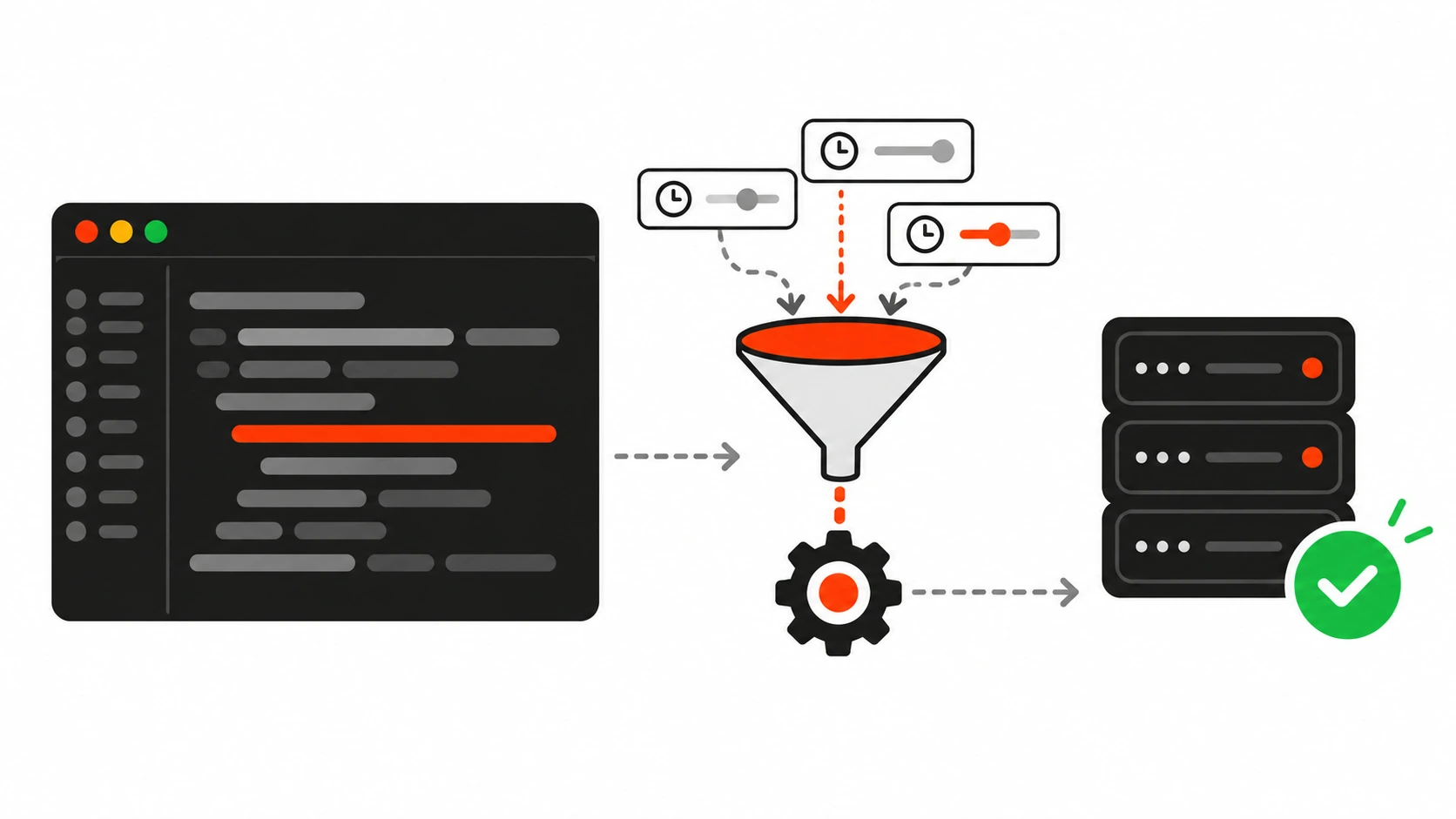
Fix 3: disable Heartbeat on specific admin screens
Sometimes one screen is the problem. A settings page from a plugin that polls constantly, or a custom dashboard nobody needs live updates on. You can remove Heartbeat from just those screens with the $hook_suffix that admin_enqueue_scripts passes in:
add_action( 'admin_enqueue_scripts', function ( $hook_suffix ) {
    $quiet_screens = array( 'index.php', 'tools.php', 'options-general.php' );

    if ( in_array( $hook_suffix, $quiet_screens, true ) ) {
        wp_deregister_script( 'heartbeat' );
    }
}, 100 );
On the screens you silence, the session expiry modal goes too, which is fine for the dashboard or a settings page. Use an allow-list of screens to silence, not a list of screens to keep. If you do the reverse and kill Heartbeat everywhere except the editor, you also lose the session expiry modal on every other screen (its wp-auth-check script depends on Heartbeat), the lock icons on the Posts list, and WooCommerce order locks. For a plugin page, the hook suffix looks like toplevel_page_plugin-slug or settings_page_plugin-slug. Print $hook_suffix with error_log once to get the exact value.
If you are building your own admin page and want it to beat less often, you can also set the interval from JavaScript with wp.heartbeat.interval( 120 ) once the page is ready. Just remember that a minimalInterval floor set in PHP always wins.
Plugin conflicts and what breaks when you go too far
Heartbeat settings are one of those things that get configured three times on the same site. WP Rocket, LiteSpeed Cache and Perfmatters all ship their own Heartbeat controls, there are dedicated Heartbeat control plugins, and then a developer adds a snippet on top. They all hook the same filter or deregister the same script, and the one that runs last wins. I have seen sites where a cache plugin “reduced” Heartbeat to 120 seconds while a snippet in the theme killed it on the editor, and nobody could explain why post locks stopped working.
My rule: pick one place that controls Heartbeat and turn the others off. On client sites that is a single must-use plugin, because it survives theme changes and cannot be toggled off by accident in a settings screen.
When Heartbeat is cut too aggressively, these are the symptoms I see most:
- Two editors overwrite each other’s changes because the “this post is being edited” warning never appears.
- Classic editor users lose drafts, because autosave no longer runs.
- Someone writes for an hour, clicks Publish, and lands on the login screen with their work gone, because the session expiry modal never warned them.
- WooCommerce staff edit the same order at the same time.
- A plugin’s “live” panel shows stale numbers or a spinner forever.
Also watch for plugins that call wp.heartbeat.interval( 'fast' ) and never let go. You will see it in the Network tab as beats every 5 seconds on a screen that has no reason to be urgent. A minimalInterval floor caps that cleanly without editing the plugin.
My safe Heartbeat defaults for client sites
This is the must-use plugin I drop into wp-content/mu-plugins/ on most client builds. It removes Heartbeat from the front end, slows down general admin screens, puts a floor under the editor, and leaves every core feature working:
<?php
/**
 * Plugin Name: Heartbeat Defaults
 * Description: Calmer WordPress Heartbeat for client sites.
 */

// Front end: no Heartbeat unless a page really needs it.
add_action( 'wp_enqueue_scripts', function () {
    if ( is_customize_preview() ) {
        return;
    }
    wp_deregister_script( 'heartbeat' );
}, 100 );

// Admin: slower ticks, with a floor that also holds on the editor.
add_filter( 'heartbeat_settings', function ( $settings ) {
    global $pagenow;

    if ( in_array( $pagenow, array( 'post.php', 'post-new.php' ), true ) ) {
        $settings['minimalInterval'] = 30;
    } else {
        $settings['interval'] = 120;
    }

    return $settings;
}, 20 );
With these defaults, an editor tab goes from 360 requests an hour to 120, a dashboard or orders tab goes from 60 to 30, and logged-in visitors on the front end send none. Post locks, autosave, session checks and WooCommerce order locks keep working, because every interval stays under the 150 second lock window.
I adjust it in a few cases. On a newsroom-style site with many editors working on the same posts at once, I keep the editor floor at 15 to 20 seconds so lock warnings feel instant. On a single-author blog I am happy with 60 on the editor. On a membership site that uses Heartbeat for a real feature, I allow it on that one page template and nowhere else on the front end.
How to confirm the fix worked
After deploying the snippet, repeat the checks from earlier. In the Network tab on an edit screen, the interval field in the payload should now show 30, and the requests should arrive about every 30 seconds. On the dashboard you should see 120. Logged in on the front end, wp.heartbeat should be undefined in the console and there should be no admin-ajax requests with screen_id: front.
Then test the features you care about, not just the numbers. Open the same post in two browsers with two different users and confirm the second one gets the lock warning. Edit a draft in the classic editor if the site uses it and watch for the autosave message. On a WooCommerce store, open the same order as two shop managers. Finally, watch the hosting CPU and PHP worker graphs for a normal working day. For that store owner, the “busy while nobody is buying” pattern disappeared within a day, and the checkout went back to responding in under a second.
Heartbeat is a good example of WordPress defaults that are reasonable for one person on a fast server and expensive for a busy team on a small plan. You do not need to rip it out. Find out who is using it, take it off the front end, give it a sensible floor in the admin and keep one place in charge of those settings. If your site still feels slow on the server side after that, my guide to WordPress performance and TTFB covers the next places I look, and if you are still fighting the WordPress-is-slow reputation in general, these WordPress myths are worth a read.