WP-Cron: Why Scheduled Tasks Run Late and How to Use a Real Cron Job
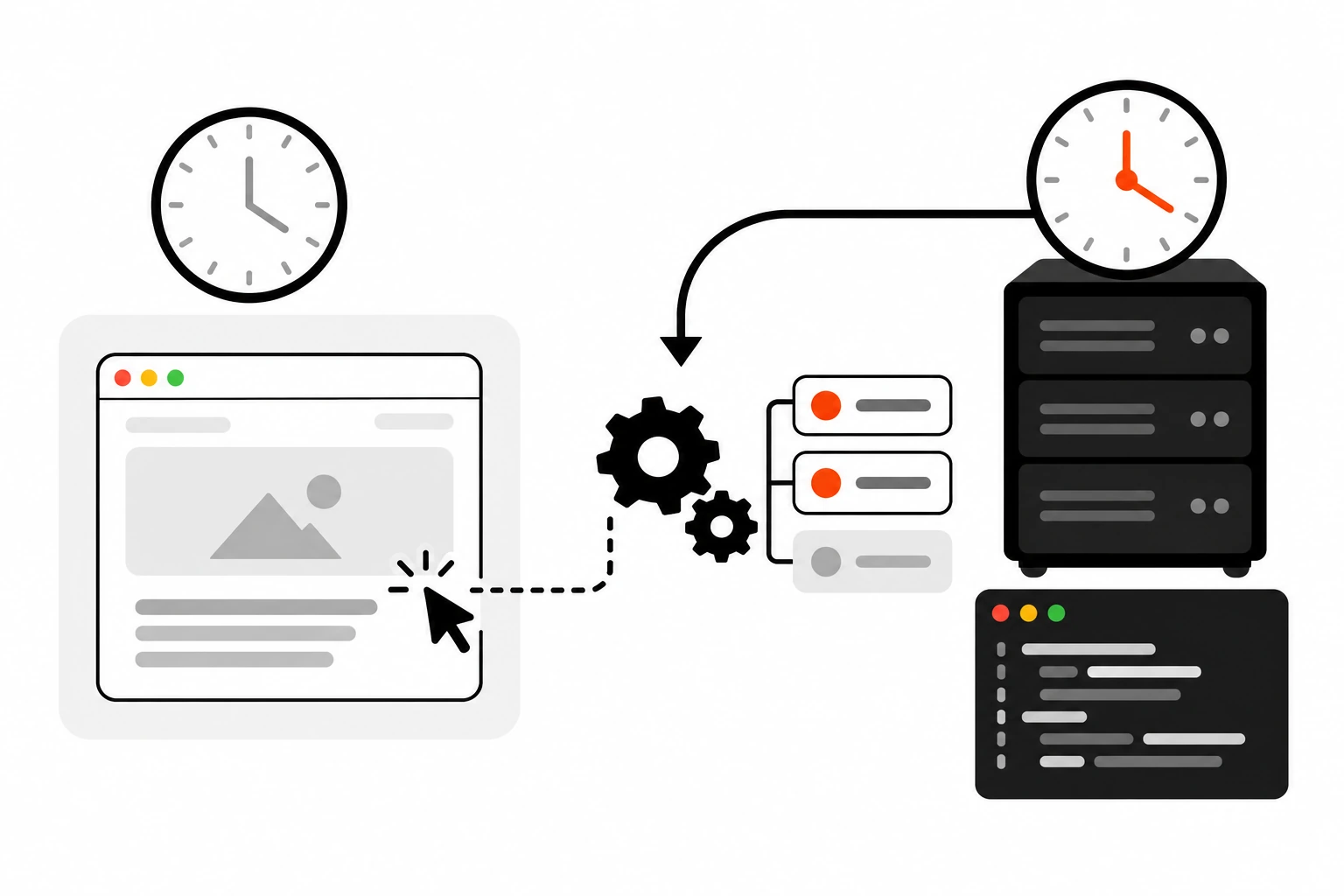
You schedule a post for 9 AM, check the site at 10, and it’s still sitting there with a red “Missed schedule” label. Or a backup plugin swears it runs every night, but the last file is four days old. Nine times out of ten, the culprit is WP-Cron, and the fact that it isn’t really a cron at all.
WP-Cron only wakes up when someone visits your site. No visits, no scheduled tasks. Lots of cached visits, still no scheduled tasks. I’ve fixed this on enough WordPress sites that I now set up a real server cron by default. Here’s how WP-Cron works, why it misses, and exactly how I switch it over.
Key takeaways
- WP-Cron checks for due tasks during normal page requests. It doesn’t run on a clock, so quiet or heavily cached sites run tasks late.
- When something is due, WordPress fires a quick loopback request to
wp-cron.php. If that request is blocked, nothing runs.- The fix is
define( 'DISABLE_WP_CRON', true );inwp-config.phpplus a system cron that hitswp-cron.phpor runswp cron event run --due-now.- Use
wp cron event list,wp cron test, Site Health and the WP Crontrol plugin to see what’s scheduled and what’s stuck.- In plugins, always check
wp_next_scheduled()beforewp_schedule_event(), and clear your hook on deactivation.
Short answer: WP-Cron is WordPress’s built-in scheduler, but it only runs when a page request comes in, so scheduled posts, backups and plugin jobs fire late or not at all on low-traffic or cached sites. To make it reliable, add DISABLE_WP_CRON to wp-config.php and let a real server cron trigger it every five minutes.
What is WP-Cron and how does it actually work?
WP-Cron is the system WordPress uses to run time-based tasks like publishing scheduled posts and checking for updates. It doesn’t run constantly. On page loads, WordPress checks a list of scheduled events, and if any are due, it sends a non-blocking request to its own wp-cron.php file, which runs them.
The official WordPress cron handbook says it plainly: WP-Cron is only triggered on page load. If you schedule something for 2 PM and nobody visits until 5 PM, it runs at 5.
Here’s the flow on a normal request:
- A visitor (or a bot, or you in wp-admin) requests a page, and WordPress loads.
- WordPress calls
wp_cron(). Since WordPress 6.9, the actual check runs on theshutdownaction, after the page has been sent, unlessALTERNATE_WP_CRONis on. spawn_cron()looks at the queue. If nothing is due, it stops. It also stops if another run started recently, using adoing_crontransient as a lock and theWP_CRON_LOCK_TIMEOUTconstant (60 seconds by default).- If something is due, it posts to
wp-cron.php?doing_wp_cron=...on your own site with a tiny 0.01 second timeout and doesn’t wait for the answer. - That separate request to
wp-cron.phpruns every due event, then reschedules the recurring ones.
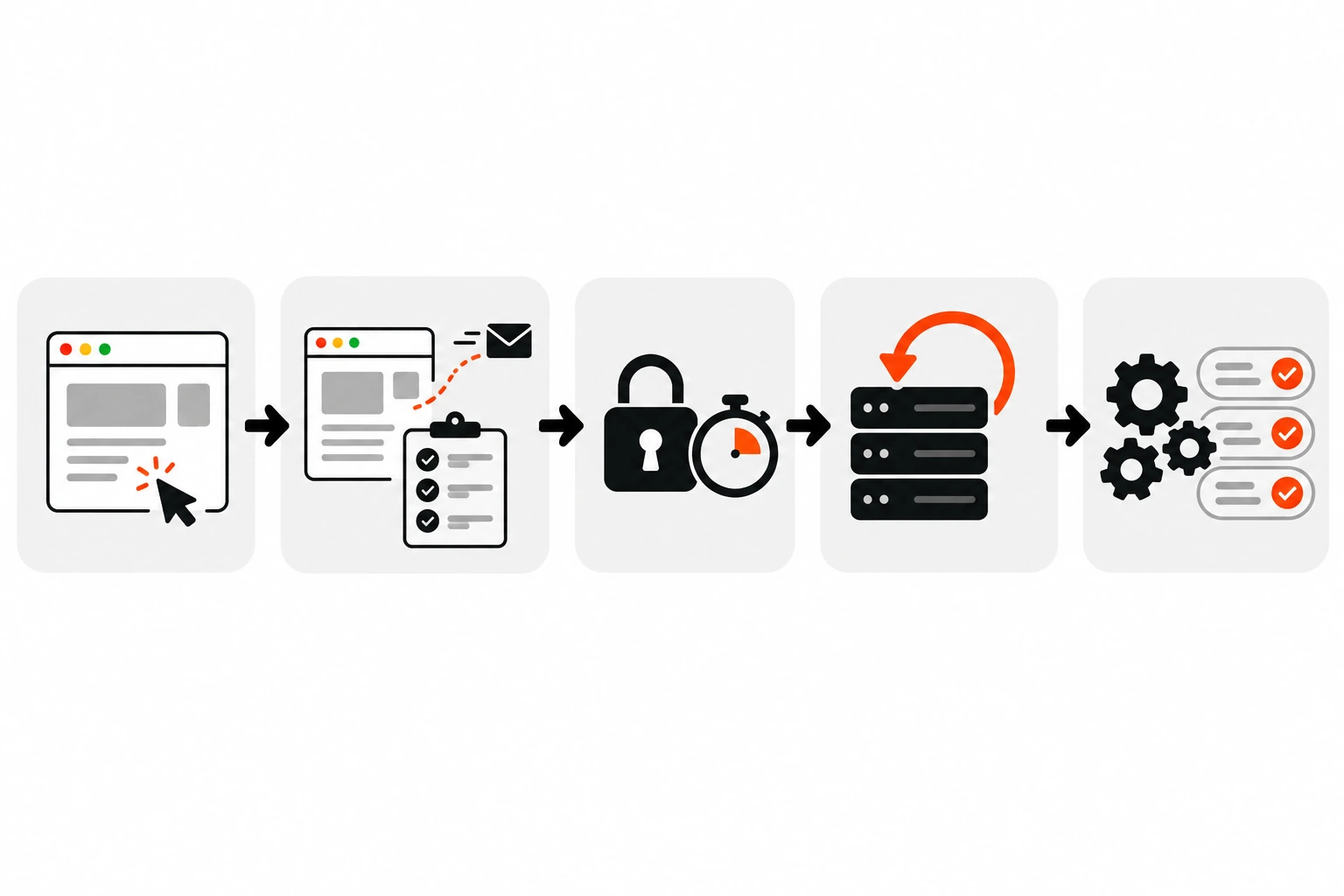
That step 4 request is called a loopback, because your server is calling itself. It matters a lot later.
The 6.9 change is worth knowing about if you care about speed. The wp_cron() reference notes that the old spawn on wp_loaded could add to Time To First Byte, because a 0.01 second timeout doesn’t always behave like one. Moving it to shutdown lets the HTML go out first. If you’ve been chasing slow responses, my notes on WordPress TTFB cover the rest of that story.
Why do WordPress scheduled posts show “Missed schedule”?
A scheduled post is published by a one-off WP-Cron event. If no request triggers WP-Cron around that time, or the loopback to wp-cron.php fails, the event never runs and the post stays scheduled with a “Missed schedule” label. The same thing quietly happens to backups, emails and plugin jobs.
The causes I see most often:
- Low traffic. A small site might go hours overnight without a single uncached request.
- Full-page caching. If a cache plugin, the host or a CDN serves the page without booting WordPress, WP-Cron never gets a chance to check anything. Great for speed, bad for schedules. My guide to Cache-Control headers explains why so many requests never reach PHP.
- Blocked loopbacks. HTTP basic auth on a staging site, a firewall that blocks the server’s own IP, broken DNS or SSL on the server. WP-Cron spawns the request, it fails, and nothing logs a thing.
- One slow job blocking the line. A long backup or import keeps the run busy, so the events behind it run late.
- Someone disabled WP-Cron and never added a real cron. I’ve seen this more than once after a migration.
The handbook does point out one upside. With WP-Cron, a missed task isn’t dropped. It waits in the queue and runs at the next opportunity. So the post will go live eventually. Just not when you promised it would.
Is WP-Cron a real cron job?
No. A real cron is a system service that runs commands on a fixed clock whether anyone visits your site or not. WP-Cron is a WordPress queue that only gets checked during web requests. WordPress borrowed the name from Unix cron, but the timing guarantees are completely different.
Here’s how the two compare in practice:
| WP-Cron (default) | Real server cron | |
|---|---|---|
| What triggers it | Incoming page requests | The server’s clock |
| Timing | Whenever the next uncached request arrives | Every N minutes, on schedule |
| Quiet or cached sites | Tasks run late or not at all | Runs on time regardless of traffic |
| Needs loopback requests | Yes | No, if the cron runs WP-CLI directly |
| Runs on visitor requests | Yes, it checks the queue on each load | No, it’s kept off the visitor’s path |
| Setup | None, it’s on by default | One wp-config.php line plus a crontab entry |
| Works on any host | Yes | Needs cron access in the host panel or SSH |
The “works on any host” row is the real reason WP-Cron exists. Lots of shared hosting never gave people access to the system scheduler, so WordPress had to bring its own. Today almost every host I work with has a cron jobs screen in its panel, so there’s little reason not to use it.
How do I disable WP-Cron and set up a real cron job?
Add define( 'DISABLE_WP_CRON', true ); to wp-config.php above the “stop editing” line, then create a server cron job that calls https://yoursite.com/wp-cron.php or runs wp cron event run --due-now every five minutes. Do both together, or no scheduled tasks will run at all.
The order matters, so here’s exactly what I do:
- Check the current queue first with
wp cron event listso you know what “normal” looks like. - Create the server cron job in your hosting panel (or with
crontab -eover SSH). - Wait for it to run once and confirm events are being processed.
- Only then add the
DISABLE_WP_CRONline towp-config.php. - Check the queue again after 15 to 30 minutes. Nothing should be overdue.
The wp-config.php line:
// Stop WordPress from checking the cron queue on page loads.
// A real server cron runs it instead.
define( 'DISABLE_WP_CRON', true );
Despite the name, this doesn’t turn WP-Cron off. Your events still exist and wp-cron.php still works. It only stops page loads from spawning it.
For the server side, the WordPress guide to hooking WP-Cron into the system task scheduler uses wget. Every five minutes looks like this:
*/5 * * * * wget -q --delete-after https://example.com/wp-cron.phpIf your server has curl instead, this does the same job:
*/5 * * * * curl -s https://example.com/wp-cron.php > /dev/null 2>&1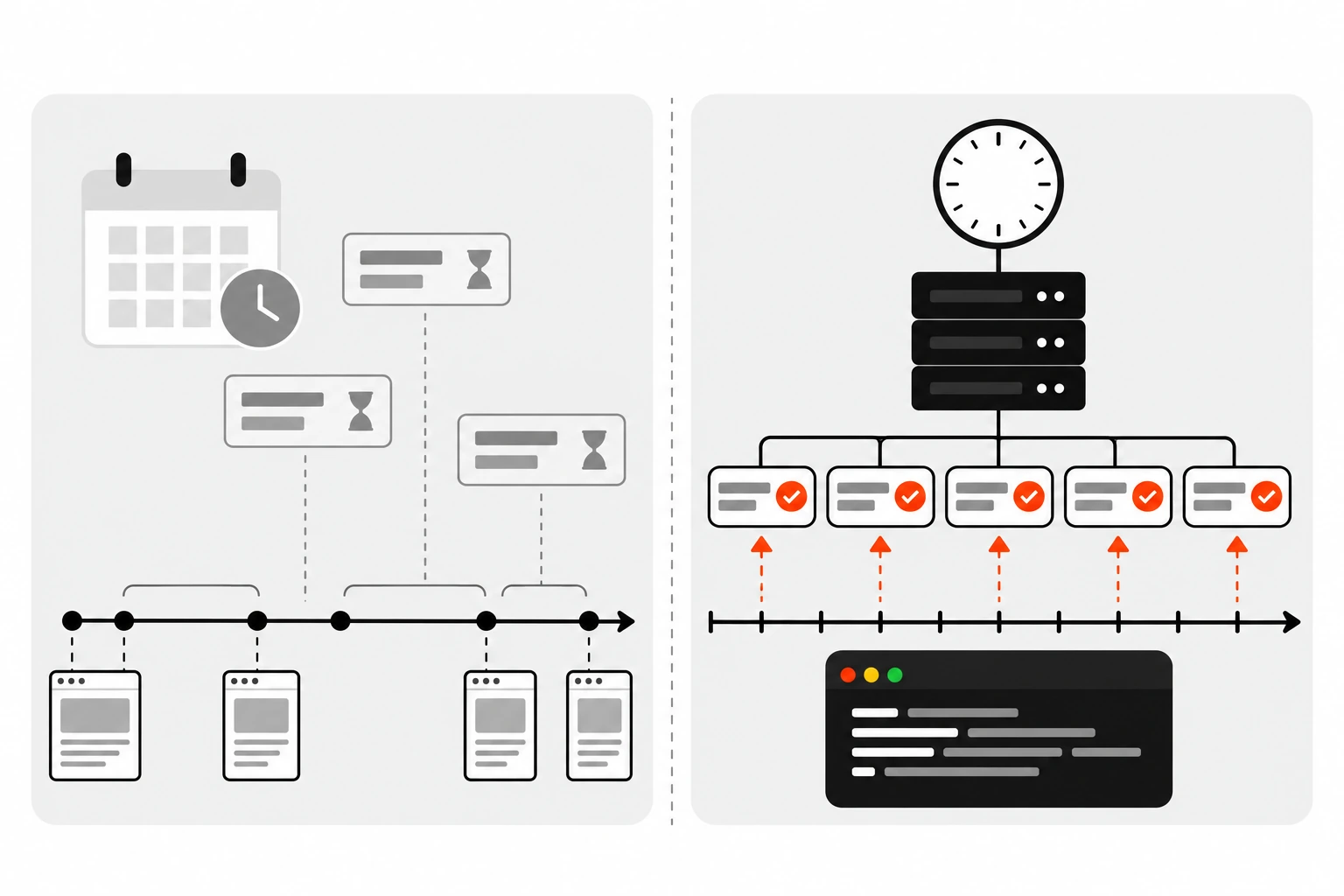
Five minutes is my default. Scheduled posts land within a few minutes of their time, and it’s gentle on small servers. For a busy WooCommerce store I sometimes go to every minute. For a brochure site, every 15 minutes is fine.
Should the server cron call wp-cron.php or run WP-CLI?
If you have SSH and WP-CLI on the server, run wp cron event run --due-now directly. It skips the HTTP layer, so caching, firewalls and basic auth can’t get in the way, and PHP web timeouts don’t apply. If you only have a hosting panel without WP-CLI, calling wp-cron.php over HTTP is fine.
The WP-CLI version looks like this:
*/5 * * * * cd /var/www/example.com/public && wp cron event run --due-now --quietYou can also skip the cd and pass the path with WP-CLI’s global --path flag. According to the WP-CLI docs for wp cron event run, --due-now runs every hook that’s due right now and respects the doing_cron transient so runs don’t overlap. On multisite there’s a --network flag too, but at the time of writing the docs mark it as not yet in a stable release, so check your WP-CLI version before relying on it.
One thing to watch: the cron runs as whatever system user owns the crontab. Run it as the same user that owns your WordPress files, not root, or you’ll end up with files and cache entries owned by the wrong account.
How do I see which WP-Cron events are scheduled?
Use wp cron event list in WP-CLI to see every hook, its next run time and its recurrence. Run wp cron test to check that WordPress can spawn cron over HTTP. In the dashboard, Tools, then Site Health flags late or failed events, and the free WP Crontrol plugin lists and runs events.
My usual check:
# Every scheduled event, next run and recurrence
wp cron event list --fields=hook,next_run_gmt,next_run_relative,recurrence

# Can WordPress spawn WP-Cron over HTTP?
wp cron test

# Run everything that's due right now
wp cron event run --due-now
A few things to know about these:
wp cron testerrors out whenDISABLE_WP_CRONis set, which is expected. It also warns ifALTERNATE_WP_CRONis on, and warns when the spawn request doesn’t come back with a 200.- If
next_run_relativeshowsnowfor the same events every time you check, the queue isn’t being processed. - Most WP-CLI commands load WordPress, which can spawn cron on its own. So a stuck queue sometimes clears itself while you’re looking at it. Annoying, but useful to know.
On the dashboard side, Site Health (under Tools) reports “A scheduled event is late” or “A scheduled event has failed”. It also has a loopback test, and “Your site could not complete a loopback request” is a big hint that WP-Cron can’t spawn.
The WP Crontrol plugin is what I install when I want to see events in the admin. It shows every event with its arguments, schedule and callback, lets you run one immediately, and warns about events that have missed their schedule. It also flags events whose action is “None”, which usually means a plugin was deleted without cleaning up.
How do I schedule a WP-Cron event correctly in a plugin?
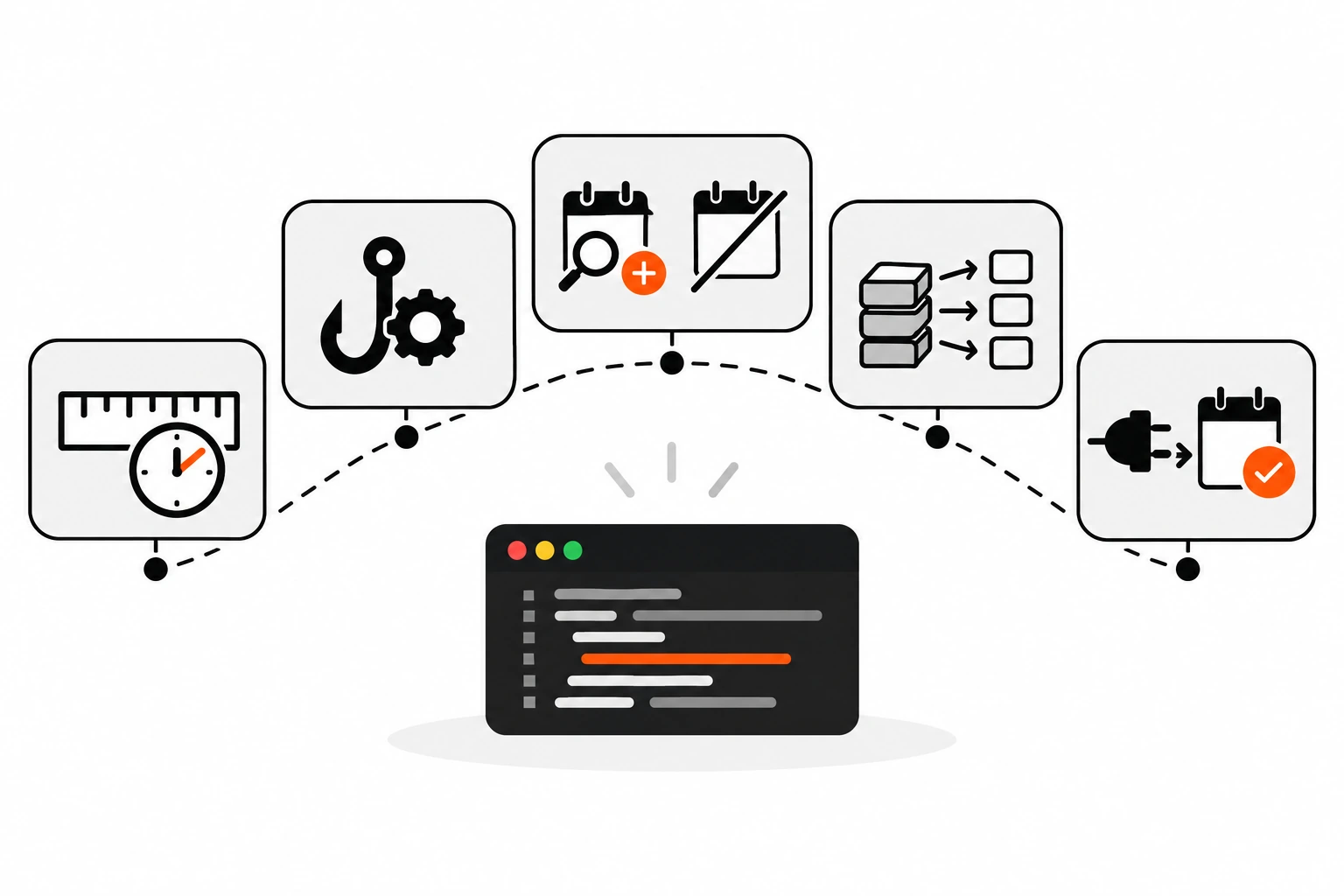
Hook your function to a custom action, check wp_next_scheduled() before calling wp_schedule_event() so you never schedule twice, add custom intervals with the cron_schedules filter, and call wp_clear_scheduled_hook() on deactivation. Schedule from the activation hook, not on every page load, and keep each run short.
Here’s the full pattern I use:
<?php
/**
 * Plugin Name: DP Nightly Cleanup
 */

// 1. Add a custom interval (all intervals are in seconds).
add_filter( 'cron_schedules', 'dp_add_cron_interval' );
function dp_add_cron_interval( $schedules ) {
	$schedules['dp_every_fifteen_minutes'] = array(
		'interval' => 15 * MINUTE_IN_SECONDS,
		'display'  => esc_html__( 'Every 15 minutes' ),
	);
	return $schedules;
}

// 2. Attach the work to a custom hook.
add_action( 'dp_cleanup_hook', 'dp_run_cleanup' );
function dp_run_cleanup() {
	// Keep it short. Process a batch, not everything at once.
}

// 3. Schedule once, on activation.
register_activation_hook( __FILE__, 'dp_activate' );
function dp_activate() {
	if ( ! wp_next_scheduled( 'dp_cleanup_hook' ) ) {
		wp_schedule_event( time(), 'dp_every_fifteen_minutes', 'dp_cleanup_hook' );
	}
}

// 4. Clean up on deactivation.
register_deactivation_hook( __FILE__, 'dp_deactivate' );
function dp_deactivate() {
	wp_clear_scheduled_hook( 'dp_cleanup_hook' );
}
A few details that trip people up:
- WordPress ships with
hourly,twicedaily,dailyandweeklyintervals. Anything else needs thecron_schedulesfilter. - The WordPress plugin handbook warns that calling
wp_schedule_event()on every page load without a check can schedule the same task thousands of times. Thewp_next_scheduled()guard is not optional. - If you schedule with arguments,
wp_clear_scheduled_hook()needs the same arguments to find the event. The hook name alone won’t match. - For one-off jobs, use
wp_schedule_single_event()instead.
The deactivation cleanup matters more than people think. The handbook says WordPress will keep trying to run your events even after the plugin is removed. That’s where those “None” actions in WP Crontrol come from.
What is ALTERNATE_WP_CRON and when should you use it?
ALTERNATE_WP_CRON is a wp-config.php constant that swaps the background loopback for a redirect. When cron is due, the visitor’s browser is redirected back to the same URL with a doing_wp_cron query string, and cron runs in the original connection. It’s a workaround for hosts where loopback requests fail, not a first choice.
define( 'ALTERNATE_WP_CRON', true );The WordPress docs describe it as a fix for scheduled posts not publishing, and note that the redirect approach comes with risks. In my experience it also leaves ugly ?doing_wp_cron= URLs in front of visitors. It only kicks in on GET requests, and it’s skipped for AJAX and XML-RPC requests.
If you can add a server cron, do that instead. I only reach for ALTERNATE_WP_CRON on locked-down hosting where loopbacks fail and there’s no cron access at all.
What are the most common WP-Cron mistakes?
The big ones are scheduling events without a wp_next_scheduled() check, running long jobs in one go, setting DISABLE_WP_CRON without adding a server cron, blocking loopback requests with password protection or a firewall, and leaving events behind after a plugin is removed.
The ones I run into most in audits:
- Duplicate events. A plugin schedules on
initwithout checking first.wp cron event listshows the same hook ten times. - Huge tasks in a single run. One event tries to process 50,000 rows and hits a PHP timeout, so it fails every time and nothing after it runs on schedule. Process in batches and reschedule.
- Password-protected staging sites. HTTP basic auth blocks the loopback. Either add a server cron with WP-CLI or allow the server’s own requests through.
- Over-eager security rules. A firewall rule that blocks requests to
wp-cron.phpfrom the server’s IP stops everything. - Very short intervals. Every-minute events that call external APIs pile up fast. If your job calls a third-party API, respect its limits. I wrote about API rate limiting from the other side.
- Confusing WP-Cron with the Heartbeat API. They’re different systems. Heartbeat is browser-driven polling in wp-admin. I covered it in my post on the WordPress Heartbeat API.
How do WooCommerce and backup plugins depend on WP-Cron?
WooCommerce uses Action Scheduler for background jobs like subscription renewals and emails, and by default Action Scheduler’s queue is kicked off by WP-Cron, plus the shutdown hook on admin requests. Most backup plugins schedule their runs as WP-Cron events. When WP-Cron stalls, both fall behind.
The Action Scheduler FAQ says some past-due actions are normal because of how WP-Cron works. But if you see lots of past-due actions more than a day old, something’s wrong. In WooCommerce you can check under WooCommerce, then Status, then Scheduled Actions.
For backups, the check is simpler. Look at the date of the newest backup file, not the plugin’s settings page. A schedule that says “daily” means nothing if the event never fired.
Switching to a real server cron fixes both, because the queue gets checked on time even when nobody’s browsing the store at 3 AM.
Is it worth switching WP-Cron to a real cron job?
Yes, for almost every production site. It takes a few minutes: add DISABLE_WP_CRON, add a five-minute server cron, then confirm with wp cron event list that nothing is overdue. Scheduled posts publish on time, backups actually run, and the queue check no longer piggybacks on visitor requests.
If you do one thing after reading this, run wp cron event list on your site and look for anything with a next run in the past. Then check Site Health for a loopback warning. Those two checks tell you most of what you need to know.
And if your site is tiny and everything’s running fine? Leave it. WP-Cron works well enough when there’s steady, uncached traffic. It’s the quiet sites and the heavily cached ones where it lets you down.