SPA Focus Management: How to Fix Route Changes in React and Next.js
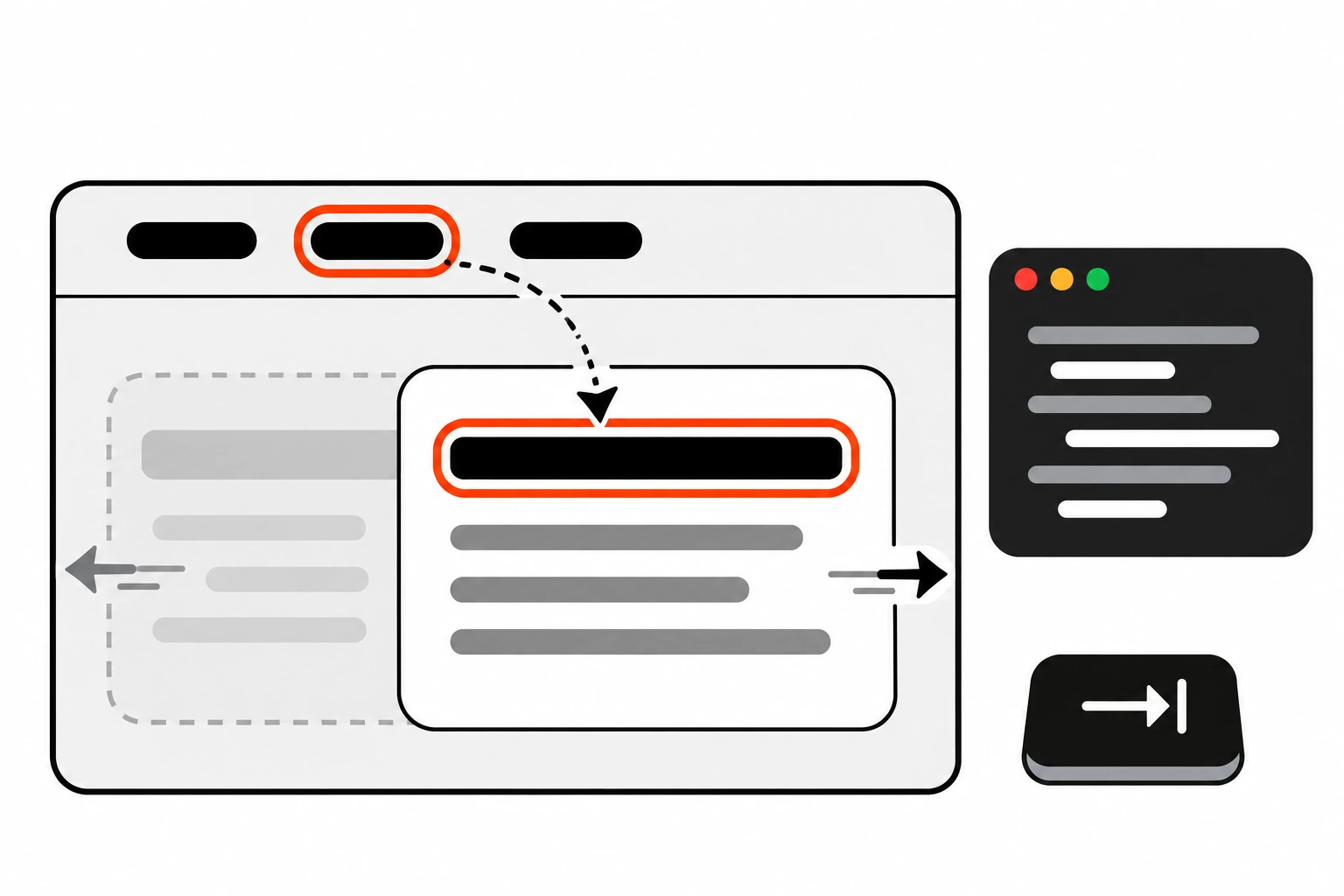
Click a link on a normal website and the browser does a lot of quiet work for you. It loads a fresh document, resets focus to the top and lets the screen reader announce the new page title. Single-page apps skip that reload, which is the whole point. But they skip the accessibility reset too, and that’s where SPA focus management comes in.
I’ve tabbed through plenty of React and Next.js apps where the URL changes, the content swaps, and keyboard focus is left sitting on a link that no longer exists. A screen reader user hears nothing. A keyboard user presses Tab and lands somewhere random. This guide covers what breaks, what Next.js already handles for you, and the small amount of code that fixes the rest.
Key takeaways
- Client-side navigation doesn’t reset focus or announce the new page the way a full page load does. You have to handle both yourself.
- The simplest reliable fix is moving focus to the new page’s
h1(ormain) withtabIndex={-1}after each route change.- An
aria-liveregion can announce the new page, but it doesn’t move keyboard focus. It’s a supplement, not a replacement.- Next.js includes a route announcer by default. It announces the page title on client-side navigation, but it leaves focus where it was.
- Give every route a unique
document.title, keep a skip link, and test with a keyboard and a real screen reader.
Short answer: after each client-side route change, move focus to the new page’s main heading. Give the h1 a tabIndex of -1 so it can take focus without joining the Tab order, call focus() in an effect keyed to the pathname, and give every route a unique title so announcers have something useful to read.
What is SPA focus management and why does it matter?
SPA focus management means deciding where keyboard focus goes when a single-page app changes views without a full reload. Browsers reset focus on a real page load, but not on client-side navigation. Without your own handling, keyboard and screen reader users can’t tell the page changed or where the new content starts.
On a classic multi-page site, a navigation throws away the old document. Focus starts again at the top of the new one, and assistive technology reads the new title. Nobody writes code for that. It just happens.
A React or Next.js app swaps part of the DOM in place. The browser has no idea a “page” changed. From its point of view, some nodes were removed and some were added.
So two things go missing at once. There’s no announcement, and there’s no focus reset. Sighted mouse users rarely notice, because they can see the new content. Everyone else is guessing.
What happens to keyboard focus after a client-side navigation?
Focus stays wherever it was. If the link you clicked is part of a shared layout, focus stays on that link in the nav. If the link was inside the content that got replaced, the focused element is removed from the DOM and focus usually drops back to the document body, leaving the user lost.
Both outcomes are bad, just in different ways.
When focus stays on a nav link, the next Tab press moves to the next nav item, not into the new content. A keyboard user has to tab through the whole header again to reach the page they just asked for.
When focus falls back to the body, the next Tab press typically starts from the top of the document. Screen reader users get no cue that anything changed at all. They might click the same link twice because nothing seemed to happen.
This is also why it fails the spirit of WCAG 2.4.3 Focus Order. The criterion asks that focusable components receive focus in an order that preserves meaning and operability. A focus order that starts in the middle of a stale header after every navigation doesn’t really preserve either. I cover the wider set of criteria in my WCAG 2.2 checklist.
Where should focus go when the route changes?
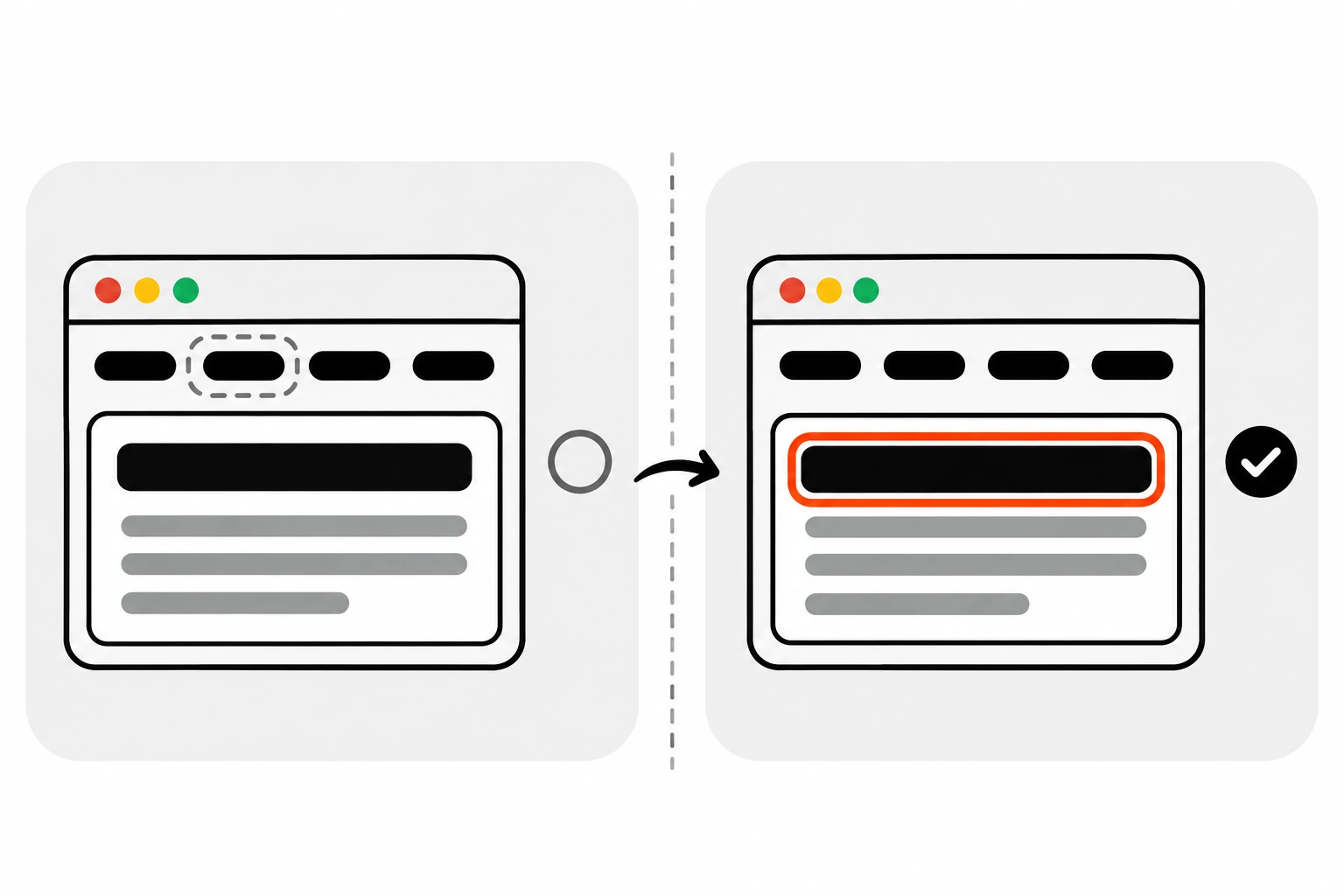
Move focus to the new page’s main heading, usually the h1. It tells screen reader users the page name right away and puts keyboard users at the start of the new content. If a page has no h1, focus the main element instead. Avoid focusing the first link, which skips the content above it.
Here’s how the common options compare in practice:
| Approach | Keyboard focus after navigation | What a screen reader hears | My take |
|---|---|---|---|
| Do nothing | Stays on the old link or drops to body | Nothing, or the old link again | Broken for keyboard and screen reader users |
| Next.js built-in announcer only | Unchanged | The new page title | Better, but keyboard users are still stranded |
Focus the h1 with tabIndex={-1} | Start of the new content | The heading text | My default for most apps |
Focus main with tabIndex={-1} | Start of the main region | Often the whole region, which can be long | Fine fallback when there’s no clear heading |
aria-live region only | Unchanged | Your custom message | Useful extra, not enough on its own |
| Reset focus to the top of the document | Top of the page | Varies by browser and screen reader | Mimics a page load, but users tab through the header again |
The heading wins for me because it does two jobs. It announces where you are, and it sets the starting point for the next Tab press.
How does tabIndex -1 let you focus a heading?
A tabindex of -1 makes an element focusable with JavaScript but keeps it out of the sequential Tab order. Headings and main aren’t focusable by default, so focus() does nothing on them until you add it. With -1, users won’t tab onto the heading later, but your code can focus it after navigation.
The MDN tabindex reference spells out the three behaviors:
- A negative value, usually -1, means the element can be focused with script but isn’t reachable with the Tab key.
- A value of 0 puts the element into the normal Tab order, based on its position in the source.
- A positive value forces a custom order. MDN recommends only using 0 and -1, and so do I.
In JSX it’s tabIndex={-1} with a capital I. That’s it. You don’t need a role, and you shouldn’t add tabIndex={0} to a heading, because then it becomes a pointless Tab stop on every visit.
How do you move focus to the h1 in Next.js App Router?
Add a small client component to your root layout that watches usePathname(). When the pathname changes, find the h1 inside main, give it tabindex="-1" if needed, and call focus(). Skip the first render so you don’t steal focus on initial page load, when the browser already handles it.
Here’s the version I use:
'use client';

import { usePathname } from 'next/navigation';
import { useEffect, useRef } from 'react';

export function RouteFocus() {
  const pathname = usePathname();
  const previous = useRef(pathname);

  useEffect(() => {
    // Skip the first load and any re-render on the same path.
    if (previous.current === pathname) return;
    previous.current = pathname;

    const target =
      document.querySelector<HTMLElement>('main h1') ??
      document.querySelector<HTMLElement>('main');
    if (!target) return;

    if (!target.hasAttribute('tabindex')) {
      target.setAttribute('tabindex', '-1');
    }
    target.focus({ preventScroll: true });
  }, [pathname]);

  return null;
}
Then render it once in app/layout.tsx:
import { RouteFocus } from './route-focus';

export default function RootLayout({ children }: { children: React.ReactNode }) {
  return (
    <html lang="en">
      <body>
        <a className="skip-link" href="#main">Skip to main content</a>
        <Header />
        <main id="main" tabIndex={-1}>{children}</main>
        <RouteFocus />
      </body>
    </html>
  );
}
A few choices in there are deliberate.
Comparing against the previous pathname, instead of a “first render” flag, keeps it safe in React Strict Mode, where effects run twice in development. The preventScroll: true option stops focus() from scrolling on its own. MDN’s focus() reference notes that the browser scrolls the element into view by default, and the App Router already runs its own scroll handling on navigation, so I’d rather not fight it.
And usePathname() ignores the query string. That’s what I want. Changing a filter like ?sort=price shouldn’t yank focus away from the control the user just changed. If you do need search params, useSearchParams() exists, but think hard before moving focus on every filter click. The same rule applies to forms, which I go into in accessible forms.
What does the Next.js route announcer do, and what doesn’t it do?
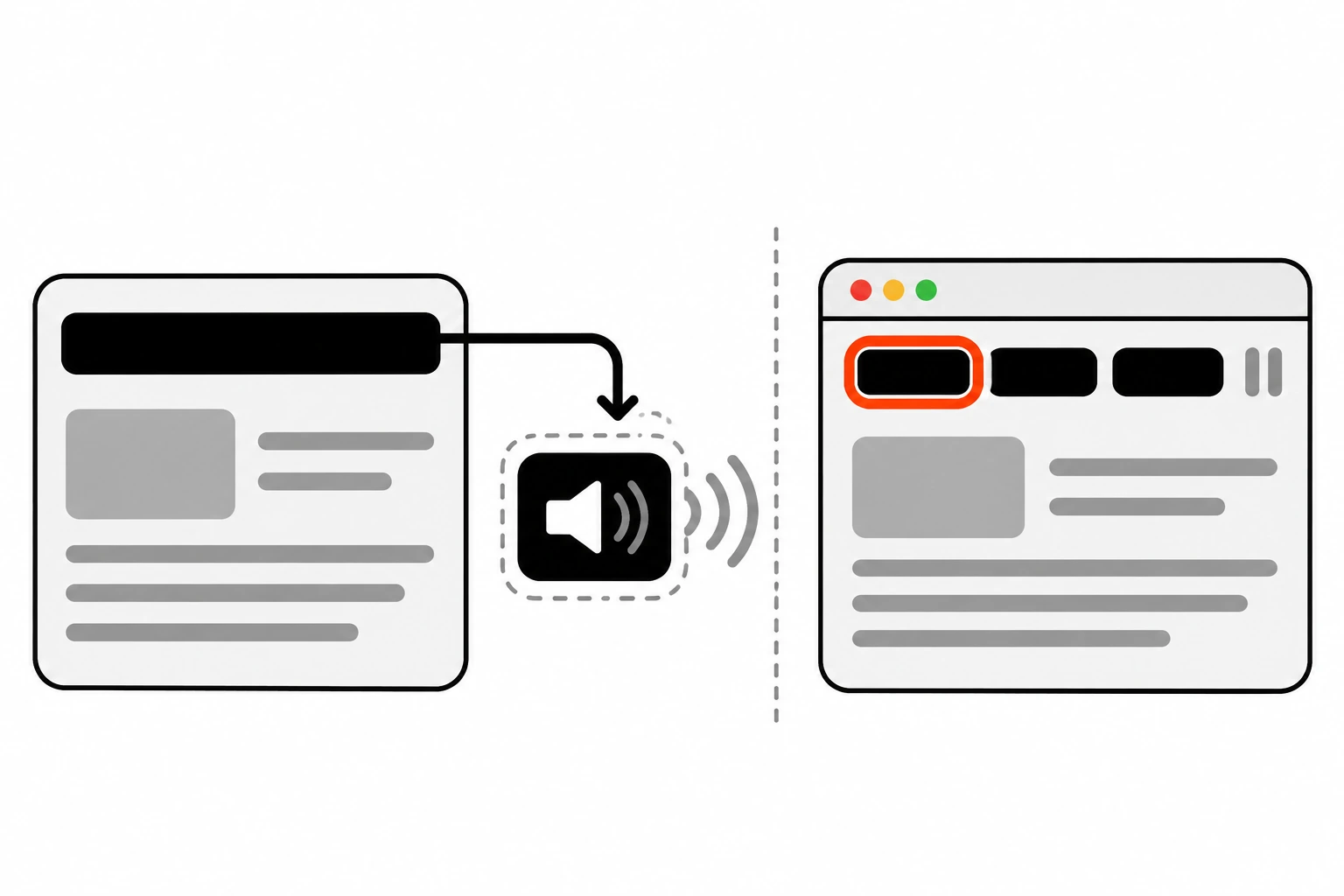
Next.js ships a route announcer by default. On client-side navigation with next/link, it reads the page name into a hidden live region so screen readers hear that the page changed. It doesn’t move keyboard focus, so a keyboard user’s next Tab press still starts from wherever focus was before.
The Next.js accessibility docs say the announcer looks for the page name by checking document.title first, then the h1 element, and finally the URL pathname. They also recommend a unique, descriptive title for every page.
I read the App Router source to see what it does in practice (checked against Next.js 16.4.3). A few details stood out:
- It creates a
next-route-announcerelement with a shadow root and a visually hiddendivthat hasaria-live="assertive"androle="alert". - It skips the first load, because screen readers already announce the title on a real page load.
- It only announces when the detected title is different from the previous one. Two routes with the same title produce no announcement at all.
- The App Router version falls back from
document.titleto the firsth1. The pathname fallback the docs mention lives in the older Pages Router announcer.
The scroll handler in the App Router also has a comment saying it intentionally leaves focus untouched. So the split is clear. Next.js tells screen reader users where they are. You decide where focus goes.
That same-title detail is the one I see bite people. If every page in an app is titled “Dashboard | Acme”, the announcer stays silent. Set per-route titles with the Metadata API, like export const metadata = { title: 'Billing' }, or generateMetadata for dynamic pages.
Do you still need an aria-live announcement if you move focus?
Usually not, if you focus a heading that names the page. Focusing an element makes screen readers read it, so the heading itself becomes the announcement. A live region is worth adding when you can’t move focus, when the heading is vague, or in a custom SPA without a built-in announcer.
In a Next.js app you already have the built-in announcer, plus your focused heading. That’s plenty. Adding a third announcement can make screen readers talk over themselves.
In a hand-rolled React SPA, there’s no announcer unless you write one. MDN’s aria-live reference explains the key rule: the live region should already exist and be empty, then you update its text when something changes. A region that’s mounted at the same moment as its message often gets missed.
Here’s a small announcer for React Router, using its useLocation() hook:
import { useEffect, useState } from 'react';
import { useLocation } from 'react-router';

export function RouteAnnouncer() {
  const location = useLocation();
  const [message, setMessage] = useState('');

  useEffect(() => {
    // Wait a tick so the new page can set document.title first.
    const id = window.setTimeout(() => setMessage(document.title), 50);
    return () => window.clearTimeout(id);
  }, [location.pathname]);

  return (
    <div className="sr-only" aria-live="polite" aria-atomic="true">
      {message}
    </div>
  );
}
I use polite here. MDN warns against assertive unless the interruption is truly needed, since it can cut off whatever the user was hearing. Next.js picked assertive for its own announcer, and that’s their call. In my own code I lean polite.
On older React Router versions the import comes from react-router-dom instead. Check the docs for the version you’re on.
How do skip links fit in with route focus?
A skip link is the first focusable element on the page. It jumps keyboard users past the header straight to main. It solves a different problem from route focus: it helps on every page load and every visit, while route focus handles the moment of navigation. Most apps should have both.
A skip link is plain HTML, so it works even before JavaScript loads:
.skip-link {
  position: absolute;
  left: 1rem;
  top: -100px;
  padding: 0.5rem 1rem;
  background: #000;
  color: #fff;
}

.skip-link:focus {
  top: 1rem;
}

/* Hide the ring on a programmatically focused heading only when the browser
   decides it isn't needed. Keyboard users still see it. */
h1[tabindex="-1"]:focus:not(:focus-visible),
main[tabindex="-1"]:focus:not(:focus-visible) {
  outline: none;
}
Notice that main has tabIndex={-1} in the layout above. That makes sure the skip link’s target can actually take focus, so screen readers start reading from the main region and the next Tab press continues from there. It also gives the route focus code a fallback target.
That CSS block also answers a question I get from designers. Yes, a focused heading can show a focus ring. Don’t remove it for everyone with outline: none. Let :focus-visible decide.
Should focus go to the h1 or the main element?
Prefer the h1 when every page has one that clearly names it. A heading is short, so screen readers announce it quickly. Use main as a fallback when there’s no heading, but be aware some screen readers read a focused region’s whole content. The code above tries the heading first, then main.
There are a few cases where I break this rule:
- Modals and drawers. These manage their own focus. When the dialog opens, focus moves inside it, and when it closes, focus returns to the trigger. Native
dialoghandles most of that, which I cover in accessible modals with the dialog element. - Tabs and in-page panels. If a “route” is really just a tab switch, keep focus on the tab. Arrow-key widgets have their own patterns.
- Search and filter results. Keep focus on the input and announce the result count with a polite live region instead.
- Back and forward buttons. Users expect to return to where they were. Restoring scroll is common. Restoring focus to the link they came from is a nice touch if you can track it.
How do you test focus management on route changes?
Test with a keyboard first. Put the mouse aside, tab to a link, press Enter, then press Tab once and see where you land. Then repeat with a screen reader like VoiceOver or NVDA and listen for the page name. Finally, lock it in with an automated test that checks the heading is focused.
My manual pass looks like this:
- Load the page and press Tab. The skip link should appear first.
- Tab to a nav link and press Enter.
- Check that focus is on the new
h1and you can see where it is. - Press Tab once. You should land on the first interactive element in the new content, not in the header.
- Turn on a screen reader and repeat. You should hear the new page name once, not three times.
For automation, Playwright’s toBeFocused() assertion is perfect for this:
import { test, expect } from '@playwright/test';

test('focus moves to the h1 after navigation', async ({ page }) => {
  await page.goto('/');
  await page.getByRole('link', { name: 'Pricing' }).click();
  await expect(page).toHaveURL(/\/pricing/);
  await expect(page.getByRole('heading', { level: 1 })).toBeFocused();
});
I write a test like this once per layout, not once per page. If you’re new to it, my Playwright end-to-end testing guide covers the setup.
What are the common SPA focus management mistakes?
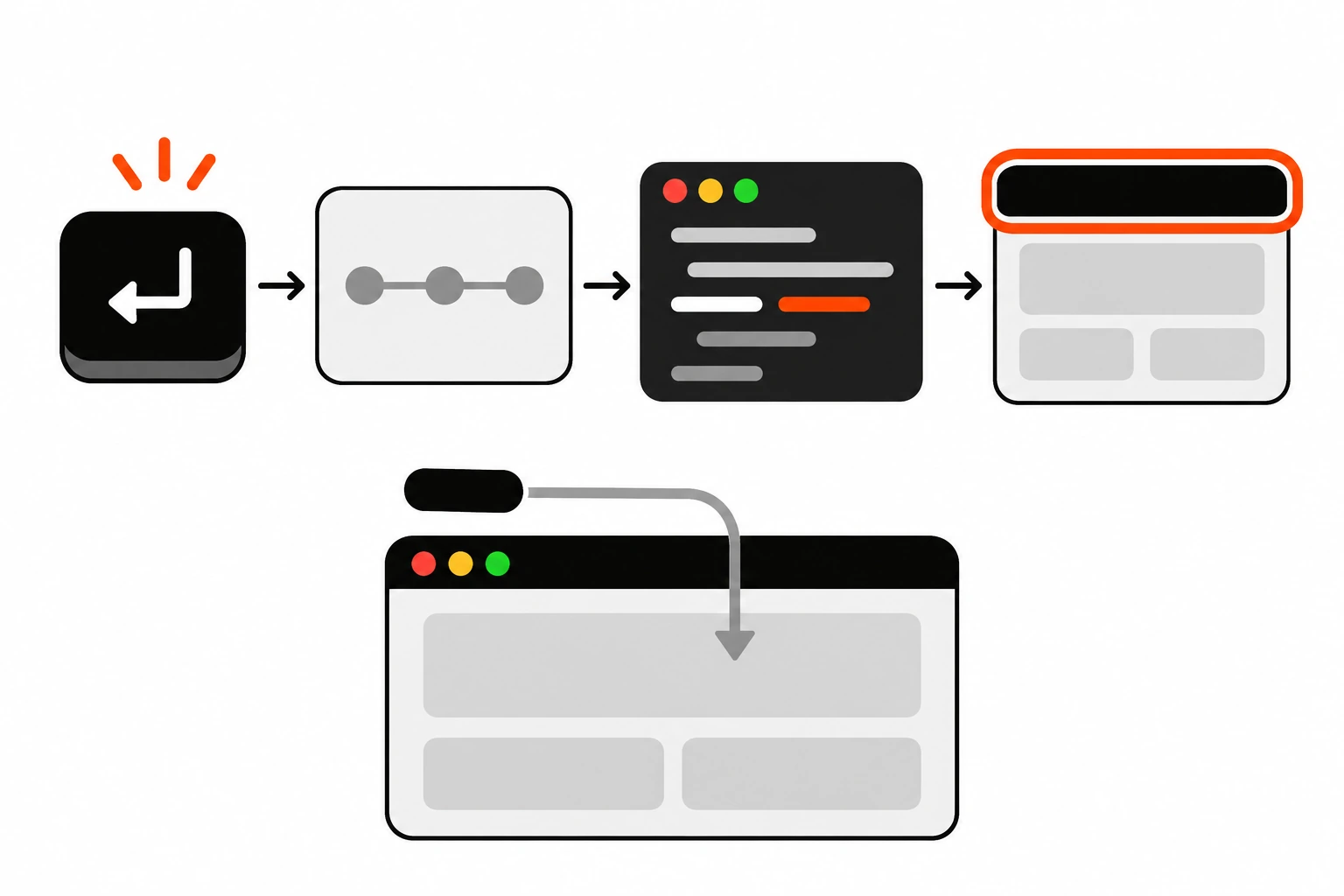
The big ones are focusing on initial load, focusing on every query change, adding tabIndex={0} to headings, removing focus outlines entirely, and relying on the built-in announcer while ignoring keyboard users. Most of these come from good intentions. They just move the problem somewhere else.
Here’s what I look for in code review:
- Moving focus on the first render, which can skip the skip link and confuse screen readers that are already reading the page.
- Running the focus effect on every render instead of when the pathname changes.
- Focusing a loading spinner, then never moving focus again when the real content arrives. If a route suspends, focus the heading once it renders.
- Giving every route the same title, so the announcer goes quiet.
- Two
h1elements on a page, soquerySelectorgrabs the wrong one. outline: noneon everything with atabindex.
None of this takes much code. The whole fix is about thirty lines plus a title per route. The hard part is remembering that the browser stopped doing this job the moment you made navigation client-side.
So pick one app this week, unplug the mouse and click through three pages with the keyboard. You’ll know within a minute whether your focus management works.