React Hydration Error in Next.js: What Causes It and How to Fix Each One
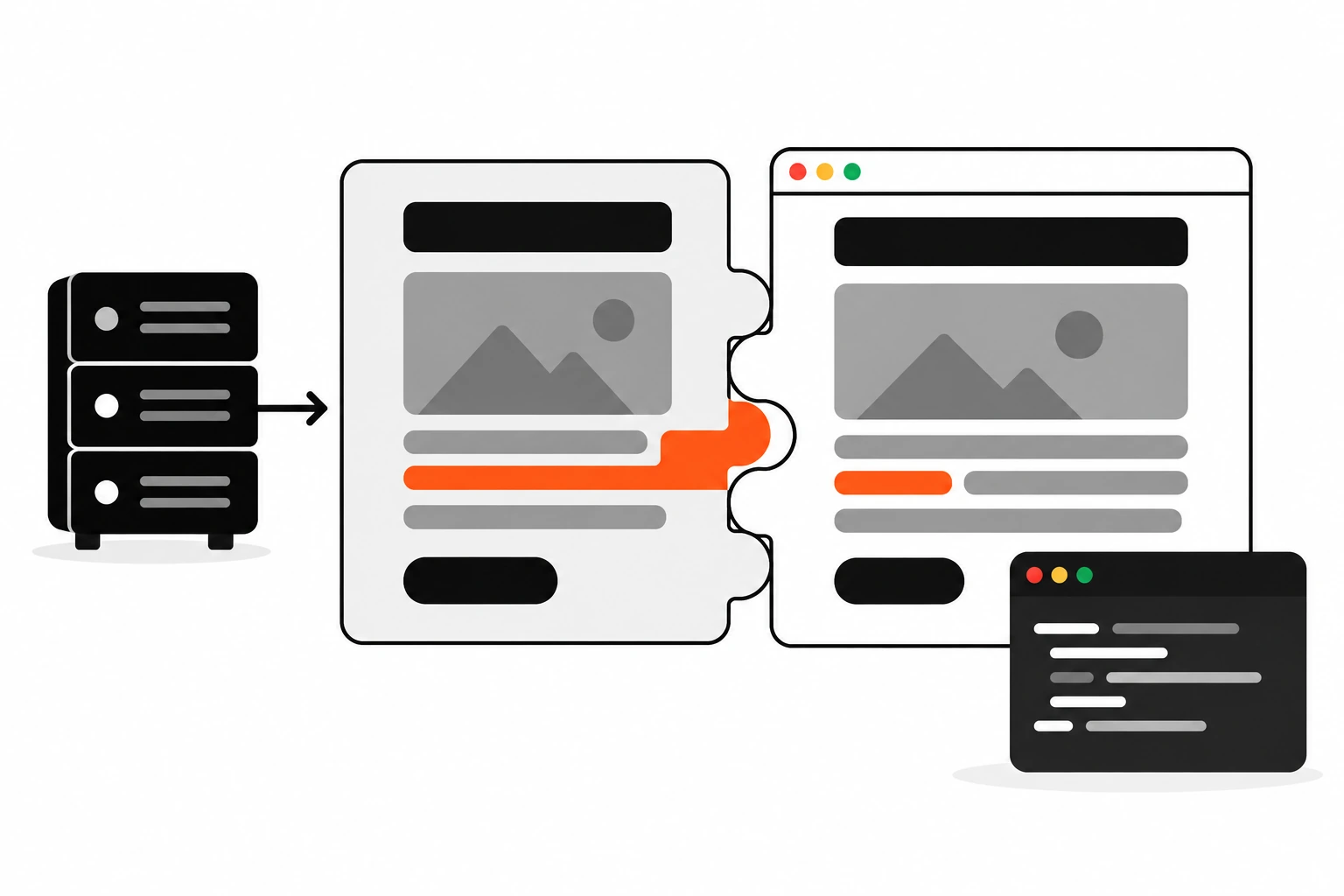
The page looks fine for half a second. Then the console fills up with red: “Hydration failed because the server rendered HTML didn’t match the client.” A hydration error like that is one of the most common things I see in React and Next.js projects, and it’s almost never random. Something rendered one way on the server and another way in the browser.
The good news is that the list of causes is short. Once you know them, most fixes take a few minutes. This guide walks through each cause I keep running into, the fix I actually use, and a debugging routine for the weird ones.
Key takeaways
- A hydration error means the first client render didn’t produce the same HTML the server sent.
- The usual suspects are dates and time zones,
typeof windowchecks,localStorage, random IDs and invalid HTML nesting.- Browser extensions and HTML-rewriting proxies can cause mismatches your code never created.
- Fix the cause first.
suppressHydrationWarningis an escape hatch for one element, not a cure.- For browser-only values, render a stable server value first, then switch on the client with
useEffectoruseSyncExternalStore.
Short answer: A React hydration error happens when the HTML React renders in the browser on first load doesn’t match the HTML the server sent. React then throws away that part of the page and renders it again on the client. To fix it, make the first client render identical to the server render, and move anything browser-specific until after hydration.
What is a hydration error in React?
Hydration is the step where React takes server-rendered HTML and attaches your components and event handlers to it. A hydration error is React telling you the tree it rendered in the browser didn’t match that HTML, so it couldn’t safely reuse it. React expects the two to be identical and treats any difference as a bug.
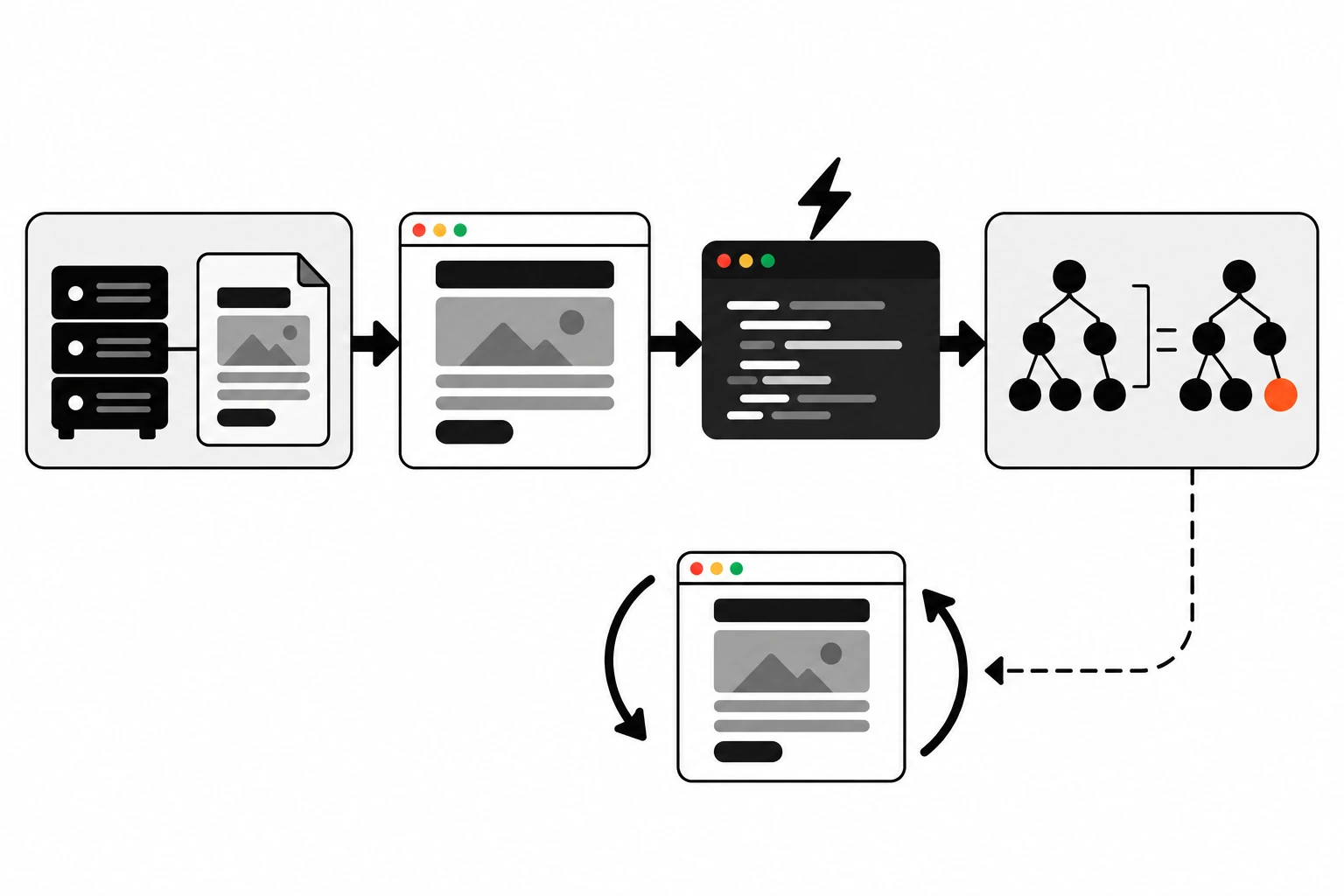
Here’s the flow in plain terms:
- The server runs your components and sends finished HTML.
- The browser shows that HTML right away, before any JavaScript runs.
- Your JavaScript loads and React renders the same components again in the browser.
- React compares its result with the existing HTML and adopts it.
Step 4 is where it breaks. If the browser render says “Saturday” and the server HTML says “Friday”, React can’t just quietly adopt the old DOM.
The React docs for hydrateRoot are blunt about it: the client render needs to produce the same output as the server, and mismatches should be treated as bugs. React recovers from some of them, but in the best case that costs you a slower page. In the worst case, event handlers end up attached to the wrong elements.
Why does a hydration error matter if the page still works?
Because “still works” usually means React threw away the server HTML for that part of the page and rendered it again in the browser. You pay for server rendering and then pay again on the client. Users can see a flash of changing content, and in rare cases clicks land on the wrong element.
It’s easy to leave hydration warnings in the console for months because nothing looks broken. But the cost is real. A client re-render right after load is extra main-thread work at the exact moment people start tapping things. If you care about responsiveness, it’s worth reading up on INP and Core Web Vitals alongside this.
There’s also a trust problem. A console full of hydration warnings hides the one warning that actually matters.
What causes hydration errors in Next.js?
Most hydration errors in Next.js come from a short list: time-dependent values like dates, branches on typeof window, reading browser APIs such as localStorage during render, random values, invalid HTML nesting, browser extensions changing the DOM, and CDNs or proxies that rewrite HTML. The first five are in your code.
The Next.js hydration error page lists the same causes, plus misconfigured CSS-in-JS libraries. Here’s how I sort them when I’m debugging:
| Cause | Where it comes from | Typical fix |
|---|---|---|
new Date() or toLocaleString() in render | Server and browser have different time and time zone | Format with a fixed timeZone, or show it after mount |
typeof window !== "undefined" branch | Server takes one branch, browser takes the other | Render the server branch first, switch in useEffect |
localStorage, window.matchMedia, screen size | Doesn’t exist on the server | useSyncExternalStore with getServerSnapshot |
Math.random() or Date.now() IDs | New value on every render | useId or IDs from your data |
<div> inside <p>, link inside link | Browser’s HTML parser fixes the markup | Use valid nesting |
| Browser extensions | Extension edits the DOM before React hydrates | Test in a clean profile |
| HTML rewriting at the edge | CDN or proxy changes the HTML | Turn off HTML rewriting features |
How do you fix a hydration error caused by dates and time zones?
Don’t format dates with the visitor’s local settings during the first render. Either format them with a fixed locale and timeZone so server and browser agree, or render a neutral value on the server and the local version after hydration. For one unavoidable timestamp, suppressHydrationWarning on that single element is fine.
This one catches almost everyone. Your server probably runs in UTC. Your visitor is in Mumbai or New York. So this line renders different text in each place:
// Server says 6:30 AM, the browser says 12:00 PM. Mismatch.
<p>Last updated {new Date(post.updatedAt).toLocaleString()}</p>
If the time doesn’t need to be local, pin everything down:
const formatted = new Intl.DateTimeFormat("en-IN", {
  dateStyle: "medium",
  timeStyle: "short",
  timeZone: "Asia/Kolkata",
}).format(new Date(post.updatedAt));

<p>Last updated {formatted}</p>
Same input, same locale, same time zone. The server and the browser produce identical text.
One rare catch. Node and the browser can ship different versions of the locale data, and some versions changed the space before AM and PM to a narrow no-break space. If formatted times still mismatch after you pin the time zone, that’s usually why. Sending an ISO string or formatting on the server only gets around it.
If it really must be in the visitor’s own time zone, render the stable version first and swap it after mount. Or, for a single <time> element where a small difference is expected, use the escape hatch:
<time dateTime={post.updatedAt} suppressHydrationWarning>
  {new Date(post.updatedAt).toLocaleString()}
</time>
Know what that does. It only works one level deep, and React won’t patch the text to match. The server version stays until something re-renders that element. It’s fine for a “last seen” label. It’s the wrong tool for anything bigger.
How do you fix “typeof window” hydration errors?
Stop branching on typeof window inside render. On the server it’s always undefined, in the browser it never is, so the two renders disagree by design. Render the server-safe version first, then flip a flag in useEffect or useSyncExternalStore so the browser version appears right after hydration.
This pattern looks harmless and causes a lot of grief:
// Server renders the fallback, the browser renders the widget.
export function ShareButton() {
  if (typeof window === "undefined") return <span>Share</span>;
  return navigator.share ? <NativeShare /> : <CopyLink />;
}
The fix is a small hook that returns false on the server and during hydration, then true in the browser:
"use client";
import { useSyncExternalStore } from "react";

const subscribe = () => () => {};

export function useIsClient() {
  return useSyncExternalStore(
    subscribe,
    () => true,  // browser, after hydration
    () => false  // server, and during hydration
  );
}
Then the component renders the same thing as the server on the first pass:
"use client";
export function ShareButton() {
  const isClient = useIsClient();
  if (!isClient) return <span>Share</span>;
  return "share" in navigator ? <NativeShare /> : <CopyLink />;
}
The classic useState(false) plus useEffect(() => setIsClient(true), []) version works too, and it’s the one the Next.js docs show. I prefer the hook above because it’s one line at the call site and doesn’t need a state update to get going.
How do you read localStorage without a hydration mismatch?
Treat localStorage like an external store. Use useSyncExternalStore with a getServerSnapshot that returns your default value. The server and the hydration pass both use that default, and React switches to the stored value right after. No mismatch, and the component stays in sync with other tabs.
The mistake looks like this:
// Crashes on the server, mismatches in the browser.
const [open, setOpen] = useState(localStorage.getItem("sidebar") === "open");
Here’s the version I use:
"use client";
import { useSyncExternalStore } from "react";

function subscribe(callback: () => void) {
  window.addEventListener("storage", callback);
  return () => window.removeEventListener("storage", callback);
}

export function useSidebarPref() {
  return useSyncExternalStore(
    subscribe,
    () => localStorage.getItem("sidebar") ?? "open",
    () => "open" // what the server rendered
  );
}
The useSyncExternalStore reference explains the rule behind this: getServerSnapshot runs on the server and again during hydration, and it has to return the same data in both places. Note that the storage event only fires for changes made in other tabs, so when you write a new value in the current tab, you also need to notify your subscribers.
If the value affects layout a lot, think about whether it belongs in a cookie instead. A cookie reaches the server, so the server can render the right version from the start. That’s also how I handle things like logged-in state, which pairs well with Next.js middleware and proxy redirects.

Why does invalid HTML nesting cause hydration errors?
Because the browser’s HTML parser repairs invalid markup before React ever sees it. If you render a <div> inside a <p>, the parser closes the paragraph early. The DOM React finds no longer matches the tree it expected, so hydration fails even though your JSX looked fine.
This is my favorite one because the code reads perfectly:
// The parser closes <p> before <div>, so the DOM splits in two.
<p className="card-text">
  <div className="badge">New</div>
  Fresh article
</p>
Common nesting mistakes I’ve had to fix:
- A
<div>or another<p>inside a<p>, often hidden inside a reusable component - A link inside another link, like a card wrapped in
<a>with a “Read more”<a>inside it - A
<button>inside another<button> <tr>placed directly inside<table>without a<tbody>- A rich text field from a CMS that already contains
<p>tags, rendered inside your own<p>
That last one shows up a lot on headless WordPress builds. The fix is to render CMS HTML inside a <div>, never a <p>. For cards, make one element the real link and style the rest. React usually prints a separate warning naming the bad parent and child, so read the console line above the hydration error too.
How do you fix random IDs that change between server and client?
Use React’s useId hook for IDs that connect elements, like a label and its input. It generates the same ID on the server and in the browser. Never build IDs with Math.random() or Date.now() during render, because they change on every call.
"use client";
import { useId } from "react";

export function EmailField() {
  const id = useId();
  return (
    <>
      <label htmlFor={id}>Email</label>
      <input id={id} type="email" />
    </>
  );
}
The React docs for useId also warn against using it for list keys. For lists, use IDs from your data. The same goes for “random” UI like shuffled testimonials. Pick the order on the server and pass it down as data, so the browser renders the same order.
Can browser extensions cause hydration errors?
Yes. Extensions like password managers, translators and grammar tools can add attributes or elements to the page before React hydrates. React then sees HTML your code never produced. If an error only shows up for you, or disappears in a private window with extensions off, an extension is the likely cause.
React 19 handles part of this better. Unexpected tags that third-party scripts and extensions insert into <head> and <body> are skipped during hydration instead of triggering a mismatch. Attribute changes on elements React owns can still trigger warnings, though.
Mobile Safari is another quiet culprit. iOS can detect phone numbers, emails and addresses in text and turn them into links, which changes the DOM. The Next.js docs suggest this meta tag to switch that off:
<meta
  name="format-detection"
  content="telephone=no, date=no, email=no, address=no"
/>
Then there’s the edge. Any CDN or proxy feature that rewrites your HTML on the way out can create a mismatch. Next.js names Cloudflare’s Auto Minify as an example. If production shows errors that local builds don’t, compare the raw HTML from your origin with what the CDN serves. While you’re in those settings, check how your pages are cached too. My guide to Cache-Control headers covers the headers that decide what a CDN keeps.
When should you use suppressHydrationWarning?
Use it only when one element’s text or attribute is expected to differ between server and browser, like a timestamp, or the class on <html> that a theme script sets before React loads. It silences the warning for that element only, one level deep, and React won’t fix the content.
The theme case is the one place I add it without thinking twice. A small inline script reads the saved theme and sets class="dark" on <html> before the page paints, to avoid a flash of the wrong theme. React didn’t render that class, so it would complain:
// app/layout.tsx
export default function RootLayout({ children }: { children: React.ReactNode }) {
  return (
    <html lang="en" suppressHydrationWarning>
      <body>{children}</body>
    </html>
  );
}
Here’s how the fixes compare:
| Fix | Best for | Downside |
|---|---|---|
| Make the render deterministic | Dates, IDs, sorted or random data | Needs a bit of thought up front |
useEffect or useSyncExternalStore flag | Browser-only values and APIs | Second render right after hydration, possible content shift |
next/dynamic with ssr: false | Widgets that can’t run on the server at all | No HTML for that part until JavaScript loads |
| Cookie read on the server | Theme, auth, layout preferences | Makes the page dynamic per user |
suppressHydrationWarning | One element that must differ | Hides the warning, doesn’t fix the content |
How do you turn off server rendering for one component in Next.js?
Use next/dynamic with { ssr: false }, called from inside a Client Component. Next.js then skips prerendering that component and loads it only in the browser. In the App Router, using ssr: false in a Server Component throws an error, so wrap it in a small file marked “use client”.
"use client";
import dynamic from "next/dynamic";

const MapWidget = dynamic(() => import("./MapWidget"), {
  ssr: false,
  loading: () => <div className="map-placeholder" />,
});

export function StoreMap() {
  return <MapWidget />;
}
The Next.js lazy loading guide documents that rule. I save this for components that really can’t render on the server, like map libraries or anything that touches window at import time. Don’t reach for it as a general fix. Every component you move to client-only is content that search engines and slow phones see later. If you want a refresher on what runs where, my post on Next.js Server Components covers the split.
Give the loading placeholder the same size as the final component, too. Otherwise you swap a hydration error for layout shift.
How do you debug a hydration error step by step?
Read the diff React prints, compare it with the raw server HTML from View Source, rule out extensions in a clean browser profile, then narrow it down to one component by removing pieces until the error stops. Most errors fall to the first two steps.
Here’s the routine I follow:
- Open the console in development and read the full hydration message. React 19 and recent Next.js versions show a diff, with lines marked
+for the client and-for the server. - Search your code for the text or attribute in that diff. Dates, counts and class names usually point straight at the component.
- Open View Source, not the Elements panel. View Source shows what the server sent. The Elements panel shows the DOM after the browser and React have changed it.
- Reload in a private window with extensions disabled. If the error goes away, it isn’t your code.
- Check the console line just above the error for nesting warnings like a
<div>that can’t be inside a<p>. - If it’s still unclear, comment out half the page and see if the error stays. Keep halving until you find the component.
- Run a production build with
next buildandnext startto confirm the fix, since some differences only appear with production data or caching.
Once it’s fixed, keep it fixed. A small end-to-end test that loads key pages and fails on hydration errors in the console catches regressions before your users do. I set those up with Playwright end-to-end tests, listening for console errors that mention hydration.

What mistakes make hydration errors worse?
The worst habit is adding suppressHydrationWarning on a big wrapper and moving on. It only covers one level, so it mostly hides the symptom while the real mismatch stays. Close behind are turning whole pages into client-only components and ignoring the warnings because the page looks fine.
A few more I see often:
- Calling
useEffectto fix a value that could have been rendered correctly on the server - Reading the user’s screen width to choose between mobile and desktop layouts in JavaScript, when a CSS media query would do it without any mismatch
- Formatting numbers and currency with no explicit locale, so the server’s locale wins on one side
- Fetching different data on the client than the server used, like a “latest” endpoint without a fixed timestamp
- Copying a “mounted” flag into dozens of components instead of sharing one hook
Are hydration errors worth fixing on every project?
Yes. Each one means wasted work on the client and a page that isn’t quite what the server promised. The fixes are small once you know the pattern: render the same thing on both sides first, then add browser-only details after hydration. A clean console also makes real errors easier to spot.
My advice is to fix them as soon as they appear. One hydration error is a ten-minute job. Thirty of them, piled up over months, is a week of untangling. Start with the cause table above, check dates and typeof window first, and you’ll clear most of them in one sitting.