Cumulative Layout Shift (CLS): How to Find and Fix What Moves Your Page
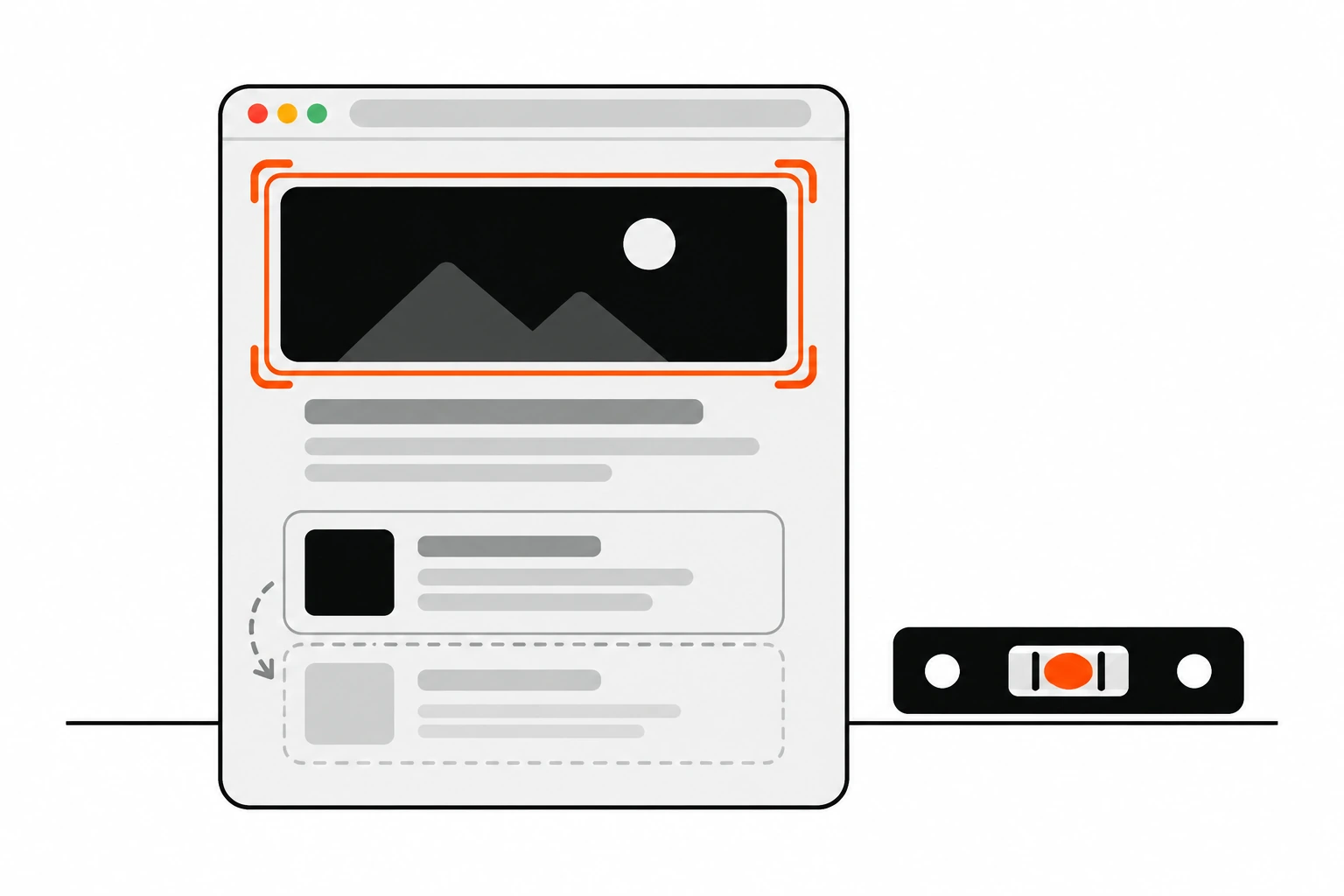
You go to tap a button, an ad loads above it, and you hit the wrong thing. That jump has a name. Cumulative Layout Shift, or CLS, is the Core Web Vital that measures how much visible content moves around unexpectedly while someone is using your page. It’s the one metric where the fix is usually a few lines of HTML or CSS.
I check CLS on every site I hand over, and the causes are almost always the same handful. Images with no size. Ad slots with no reserved space. A web font that swaps in at a different width. A banner injected at the top after the page has already painted. Once you know how the score is calculated, you can find the culprit in minutes instead of guessing.
Key takeaways
- Cumulative Layout Shift is the largest burst of unexpected layout shift scores during the whole life of a page, not just the first load.
- A good CLS is 0.1 or less at the 75th percentile of page loads. Anything above 0.25 is poor.
- Each shift’s score is impact fraction multiplied by distance fraction, so a big element moving a short way can hurt as much as a small one moving far.
- Shifts within 500 milliseconds of a tap, click or key press don’t count, because the user expected them.
- Most fixes are boring:
widthandheighton images, reserved space for ads and embeds, matched font fallbacks, andtransformfor animations.- Lab tools only see the load. Use field data or the web-vitals library to catch shifts that happen later.
Short answer: Give every image, video, iframe and ad slot its dimensions or an aspect-ratio before it loads. Never insert content above what the user is already looking at unless they asked for it. Tune your fallback font so the swap doesn’t reflow text. Animate with transform instead of top, left, width or height. Then confirm the fix with field data, not just Lighthouse.
What is Cumulative Layout Shift?
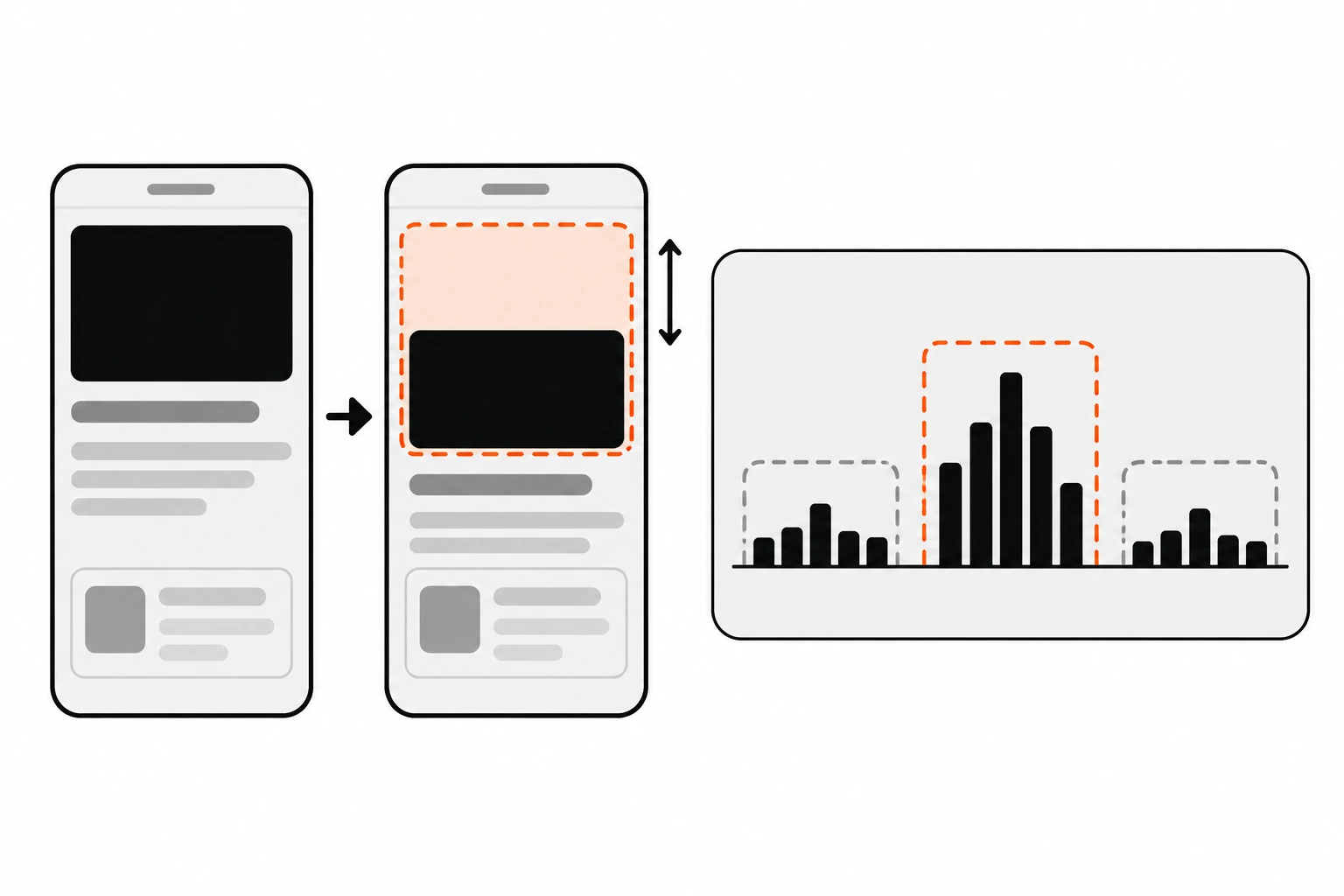
Cumulative Layout Shift is a unitless score for visual stability. The browser records every unexpected layout shift, groups shifts that happen close together into bursts called session windows, and reports the burst with the highest total. Good pages stay at 0.1 or below. Poor pages go above 0.25.
A layout shift happens when a visible element changes its start position from one rendered frame to the next. In the default writing mode, that means its top or left edge moved. If something new is added to the page or grows in size, that alone isn’t a shift. It only counts when it pushes other visible elements out of their spot.
The definition and the thresholds come from Google’s CLS documentation on web.dev. It’s worth reading once, because a lot of the confusion I see in audits comes from people thinking CLS is a timer. It isn’t. It doesn’t care how long something takes. It cares how much stuff moved and how far.
How is the CLS score calculated?
Each layout shift gets a score equal to its impact fraction times its distance fraction. Impact fraction is how much of the viewport the moving elements cover across both frames. Distance fraction is the furthest any of them moved, divided by the viewport’s largest dimension. Shifts less than a second apart, inside a five second window, add up together.
Here’s a simple example. A block covers half the viewport, then gets pushed down by a quarter of the viewport height. The union of where it was and where it ended up covers 75% of the screen, so the impact fraction is 0.75. It moved 25% of the height, so the distance fraction is 0.25. The score for that one shift is 0.75 times 0.25, which is 0.1875. That single jump already puts you in the “needs improvement” range.
Now the session window part. If three small shifts happen within a second of each other, they’re grouped. The window closes when there’s a one second gap or when it hits five seconds total. Your page’s CLS is the window with the biggest sum. So a page that shifts a little once on load and a lot after scrolling gets judged on the bad moment.
What counts as an unexpected layout shift?
An unexpected shift is any movement the user didn’t trigger. If a shift happens within 500 milliseconds of a click, tap or key press, the browser flags it with hadRecentInput and leaves it out of CLS. Scrolling doesn’t count as input, so content that jumps while someone scrolls still hurts your score.
This is why an accordion that opens when you click it is fine. The user asked for it. But a “load more” request that takes two seconds and then pushes the footer down is not fine, because the grace period is long gone by the time the content lands.
Animations get special treatment too. If you move things with transform: translate() or resize them with transform: scale(), the browser doesn’t treat it as a layout shift at all. Animate top, left, margin, width or height and you’re creating shifts on every frame.
Why does CLS matter for SEO and users?
CLS is one of the three Core Web Vitals, alongside LCP and INP, and Google uses Core Web Vitals as part of its page experience signals. More practically, layout shifts make people misclick, lose their reading position and distrust the page. A stable layout is something users feel even if they can’t name it.
I’d put the user side first. I’ve watched people in usability sessions tap the wrong product because an image above it finally loaded. Nobody files a bug for that. They just leave.
On the SEO side, CLS sits next to load speed and responsiveness. If you’ve already worked through LCP image optimization and INP for interaction speed, CLS is usually the quickest of the three to bring into the green.
What causes bad Cumulative Layout Shift?
The common causes are images and videos without dimensions, ads, embeds and iframes without reserved space, content injected above existing content, web fonts that render at a different size than their fallback, and animations that change layout properties. On most sites, one or two of these explain nearly the whole score.
Here’s the list I work through, roughly in the order I find them:
- Images and videos with no
widthandheightattributes, so the browser has no idea how tall they’ll be. - Ad slots, YouTube embeds, maps and social widgets that start at zero height and expand when they load.
- Cookie notices, promo bars and “install our app” banners pushed into the top of the page after first paint.
- Web fonts swapping in with different letter widths or line heights, so paragraphs reflow and push everything below.
- Client-side rendering that shows a small spinner, then replaces it with a much taller component.
- Animations and transitions built on
top,left,heightormargin. - Sticky headers that change height when you start scrolling.
The table below is the quick reference I keep for audits.
| Cause | What you see | Fix |
|---|---|---|
| Image without dimensions | Text jumps down when the image arrives | Add width and height, or set aspect-ratio in CSS |
| Ad or embed slot | Content shoves down when the ad fills | Reserve space with min-height on the slot container |
| Injected banner | Whole page drops after load | Overlay it with position: fixed, or render it in the initial HTML |
| Web font swap | Paragraphs reflow, lines change length | Match the fallback with size-adjust and the override descriptors |
| Late client render | Skeleton gets replaced by a taller component | Make the placeholder the same size as the final content |
| Layout animation | Neighbours twitch during transitions | Animate transform and opacity only |
How do I fix layout shift from images?
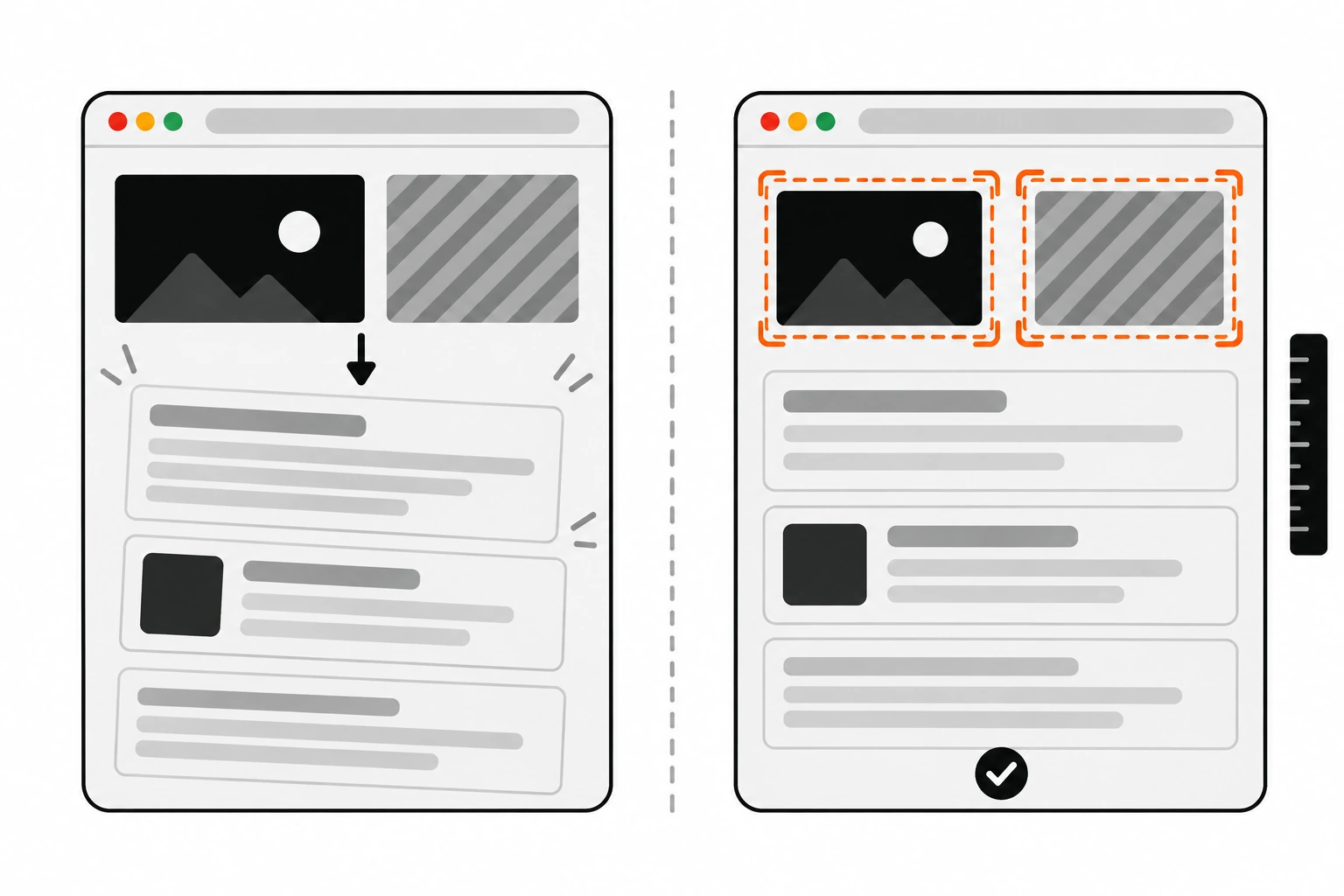
Add width and height attributes to every img tag. Modern browsers use them to compute an aspect ratio before the file downloads, so the space is reserved even when CSS makes the image responsive. For responsive containers, the CSS aspect-ratio property does the same job for any element, including video and iframe wrappers.
This is the fix I make most often, and it’s tiny. You don’t need the exact rendered size. You need the ratio. The attributes just have to match the image’s intrinsic proportions.
<!-- The browser reserves a 3:2 box before the file arrives -->
<img src="/images/hero.webp" width="1536" height="1024" alt="Dashboard overview">

<style>
  img {
    max-width: 100%;
    height: auto; /* keeps the ratio from the attributes */
  }
</style>
When you don’t control the markup, use the CSS aspect-ratio property. The pattern is short:
.video-embed {
  aspect-ratio: 16 / 9;
  width: 100%;
}
.video-embed iframe {
  width: 100%;
  height: 100%;
}
If you’re on WordPress, core already adds width and height to images in post content when it knows the attachment size. Page builders and custom theme templates are where I usually find images printed without them. Check your hero sections and sliders first.
How do I stop ads and embeds from shifting the page?
Reserve the space before the third-party script runs. Give the ad or embed container a min-height that matches the most common size it fills, so the content below it doesn’t move when it loads. If the slot sometimes stays empty, keep the reserved space anyway, or show a neutral placeholder.
Collapsing an empty ad slot feels tidy, but it’s a shift. I’d rather leave a light gray box than have the article jump up by 250 pixels.
.ad-slot--top {
  min-height: 250px; /* the size this slot fills most often */
  background: #f2f2f2;
}
.map-embed {
  aspect-ratio: 4 / 3;
}
For slots that serve different sizes on different screens, set a min-height per breakpoint. And keep ads out of the very top of the page when you can. A shift near the top affects everything below it, which pushes the impact fraction up.
How do I prevent layout shift from web fonts?
Font shifts happen when the fallback font and the web font have different metrics, so text reflows on swap. Preload the main font file, then define a fallback @font-face with size-adjust, ascent-override, descent-override and line-gap-override tuned to match. If the font isn’t critical, font-display: optional avoids the late swap entirely.
The idea is to make Arial, or whatever system font shows first, take up the same space as your brand font. Then the swap still happens, but nothing moves. Here’s the shape of it. The percentages below are placeholders. You have to measure them for your actual font pair.
@font-face {
  font-family: "Inter";
  src: url("/fonts/inter-latin.woff2") format("woff2");
  font-display: swap;
}

/* Fallback tuned to match Inter's metrics (example values, measure your own) */
@font-face {
  font-family: "Inter Fallback";
  src: local("Arial");
  size-adjust: 107%;
  ascent-override: 90%;
  descent-override: 22%;
  line-gap-override: 0%;
}

body {
  font-family: "Inter", "Inter Fallback", sans-serif;
}
The size-adjust descriptor scales every glyph of the fallback, and the override descriptors line up the vertical metrics. If you use Next.js, next/font generates an adjusted fallback for you, which is one less thing to hand-tune. Add a preload for the one font file your above-the-fold text uses:
<link rel="preload" href="/fonts/inter-latin.woff2" as="font" type="font/woff2" crossorigin>How do I handle banners, cookie notices and late content?
Don’t insert anything above content the user can already see, unless they asked for it. Render cookie notices and promo bars as fixed overlays so they float over the page instead of pushing it down. For content that loads later, reserve its space up front or place it below the viewport.
A position: fixed bar at the bottom of the screen doesn’t move any other element, so it doesn’t count as a shift. The same bar inserted at the top of the document flow pushes the entire page down. Same design, completely different score.
For client-rendered sections, the placeholder should be the same height as the real thing. I wrote about this in the context of React hydration errors, because swapping a tiny loader for a tall component is a classic way to trade one bug for another. For long lists, content-visibility: auto paired with contain-intrinsic-size gives offscreen sections an estimated height so the scrollbar doesn’t jump around.
.card-list > section {
  content-visibility: auto;
  contain-intrinsic-size: auto 600px;
}
How do I measure CLS in the browser?
Use the Layout Instability API through a PerformanceObserver with the type layout-shift. Each entry has a value, a hadRecentInput flag and a sources list pointing at the nodes that moved. For the real metric with session windows, use Google’s web-vitals library and its onCLS function, which handles the edge cases for you.
For quick debugging, I paste this into the console and then use the page normally:
new PerformanceObserver((list) => {
  for (const entry of list.getEntries()) {
    if (entry.hadRecentInput) continue; // expected shift, ignored by CLS
    console.log('Shift', entry.value.toFixed(4), entry.sources?.map((s) => s.node));
  }
}).observe({ type: 'layout-shift', buffered: true });
The LayoutShift interface on MDN documents every field. One caveat: this API is available in Chromium-based browsers only, so your field data won’t include Safari or Firefox users.
For real user monitoring, the web-vitals library is what I reach for. Its attribution build tells you which element caused the biggest shift, which is the part you actually need.
import { onCLS } from 'web-vitals/attribution';

onCLS((metric) => {
  const { largestShiftTarget, largestShiftValue } = metric.attribution;
  fetch('/analytics', {
    method: 'POST',
    keepalive: true, // lets the request finish if the page is closing
    body: JSON.stringify({
      cls: metric.value,
      target: largestShiftTarget,
      biggest: largestShiftValue,
    }),
  });
});
Why is my CLS different in Lighthouse and Search Console?
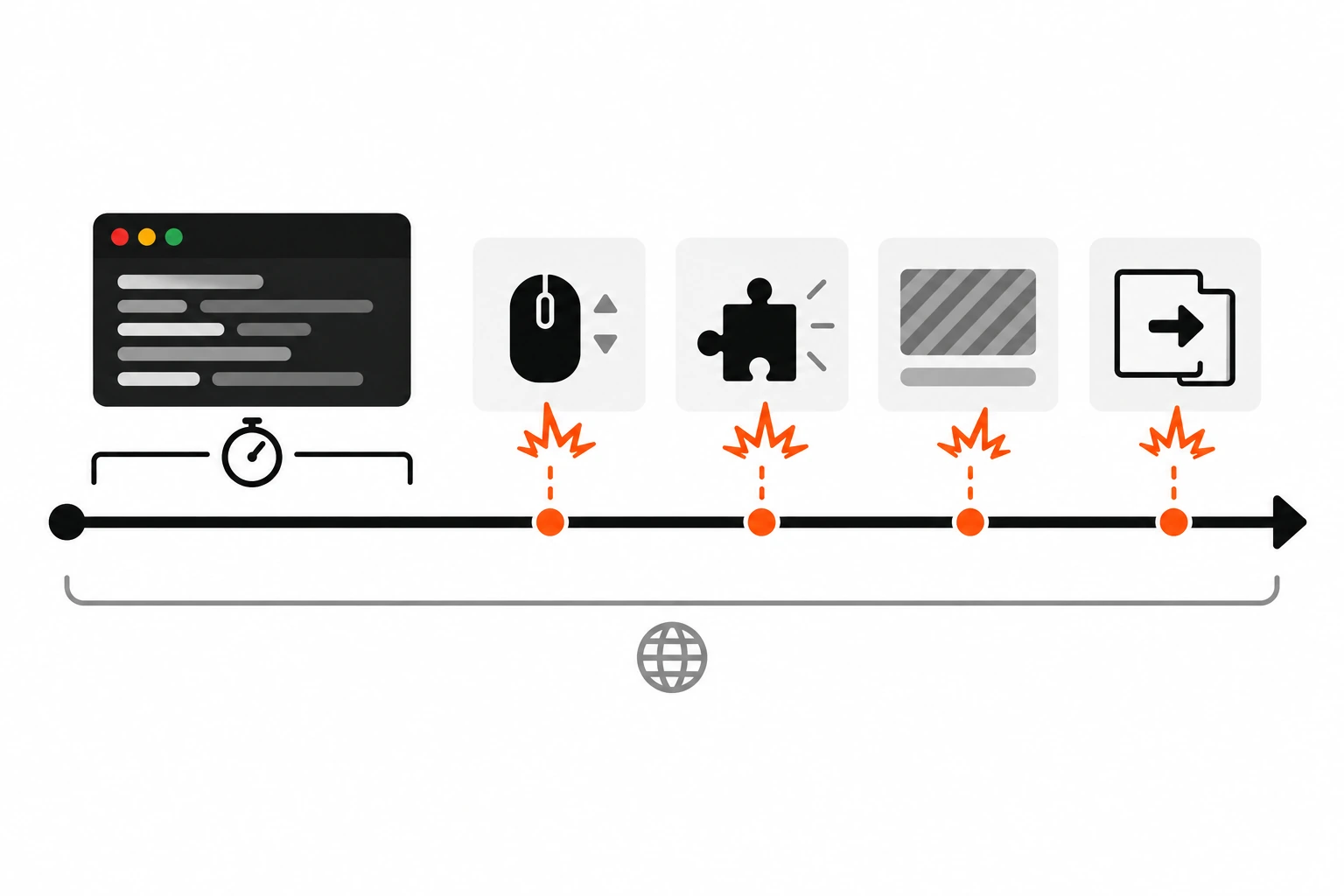
Lighthouse measures a single page load in a lab, so it only sees shifts during load. Search Console and PageSpeed Insights field data come from real Chrome users over the whole life of the page, including scrolling, late ads and slow transitions. A low lab score with a high field score usually means post-load shifts.
I see this mismatch all the time. Someone runs Lighthouse, gets 0.02, and can’t understand why Search Console says the page is poor. The answer is usually something that happens after the lab test stops: a lazy-loaded widget, an infinite scroll section, or a route change in a single page app that takes longer than the 500 millisecond grace period.
Field data is also a 75th percentile across many devices. Your fast laptop with cached images is not the user on a slow phone waiting for an ad network.
There’s a nice side effect of the back/forward cache here. When a page is restored from bfcache, its CLS starts again from zero, and since it’s shown exactly as the user left it, there’s usually nothing left to shift. If you haven’t checked yours, my guide to the back/forward cache walks through what blocks it.
How do I find which element is shifting in Chrome DevTools?
Record a trace in the Performance panel and look at the Layout shifts track, which marks each shift and highlights the elements involved. For a live view, open the Rendering drawer and turn on Layout Shift Regions, which flashes moved areas as they happen. Then trace upward to find what pushed them.
My routine looks like this:
- Open the page with a cold cache and CPU throttling turned on, so slow loads show up.
- Turn on Layout Shift Regions in the Rendering drawer and reload.
- Scroll through the whole page, open menus and wait for ads and embeds to fill.
- Record a Performance trace for anything that flashed, then click each shift to see the affected nodes.
- Look at what loaded or got inserted just before the shift, because that’s usually the real cause.
That last step matters. The element DevTools highlights is often the victim, not the culprit. If a banner is inserted at the top, every block below it gets flagged as shifted, but the fix belongs to the banner.
What’s a quick CLS checklist before launch?
Before shipping, confirm every image and iframe has dimensions or an aspect-ratio, every ad and embed slot has reserved space, banners are fixed overlays, fonts have tuned fallbacks, animations use transform, and placeholders match final sizes. Then check field data a few weeks after launch to catch shifts the lab missed.
- Every
img,videoandiframehaswidthandheight, or its wrapper hasaspect-ratio. - Ad, map and social embed containers have a
min-heightper breakpoint. - Cookie notices and promo bars use
position: fixedand never push content. - The main font is preloaded and the fallback uses
size-adjustand the override descriptors. - Transitions only touch
transformandopacity. - Skeletons and loaders match the height of the content that replaces them.
- Field CLS is checked in Search Console or your own web-vitals data after release.
If the server is slow, late HTML can make some of these problems worse, because content arrives in pieces. My notes on WordPress TTFB cover that side.
Fixing Cumulative Layout Shift is rarely glamorous work. It’s attributes, reserved boxes and a font tweak or two. But it’s the kind of polish users notice, even if they’d never call it that. Start with your heaviest template, find the biggest shift, fix the cause, and measure again.